
An assignment is work a person reviews: a written answer, uploaded files, a link to a Git repository, or a simple “I have completed this.” It’s the natural way to collect proof that a learner finished a lab. Assignments and quiz essays share one Reviews queue, so instructors have a single place to grade everything.
Create an assignment
Add one from the course outline with New assignment, then fill in the Instructions. Markdown is supported, and an assignment can’t be published without instructions.
What learners hand in
Choose one or more:
| Option | What learners provide |
|---|---|
| A written answer | Text typed into the page. |
| Files | Uploads. Set the Most files per hand-in (5 by default), the Largest file (MB) (20 by default), and the Allowed file types. |
| A link | A URL, such as a Git repository. |
| A checkbox: “I have completed this” | On its own, this makes a self-check assignment. |
Allowed file types can be chosen from pdf, zip, txt, md, csv, json, log, yaml, yml, sh, py, png, jpg, jpeg, webp, and gif. Leave the list empty to allow all of them. Uploads are checked by their content, not just their extension.
Dockerfile, can't be uploaded. Ask for them as a written answer instead.
Review and completion
| Setting | Options |
|---|---|
| Reviewers | Accept it or ask for a revision, or Give points. With points, set the Maximum points and the Points needed to pass. Reaching the pass points accepts the work. Less asks for a revision. |
| Learners may hand in a new version | Any time until it is accepted, or Only when a reviewer asks for a revision. |
| Counts as complete when | A reviewer accepts it, or The learner hands something in. Work completed on hand-in is still reviewed. |
| Due (days after enrolling) | Optional. Late work is still accepted and marked late for the reviewer. |
| Notes for reviewers | A rubric or checklist. Only reviewers ever see it. |
What learners see
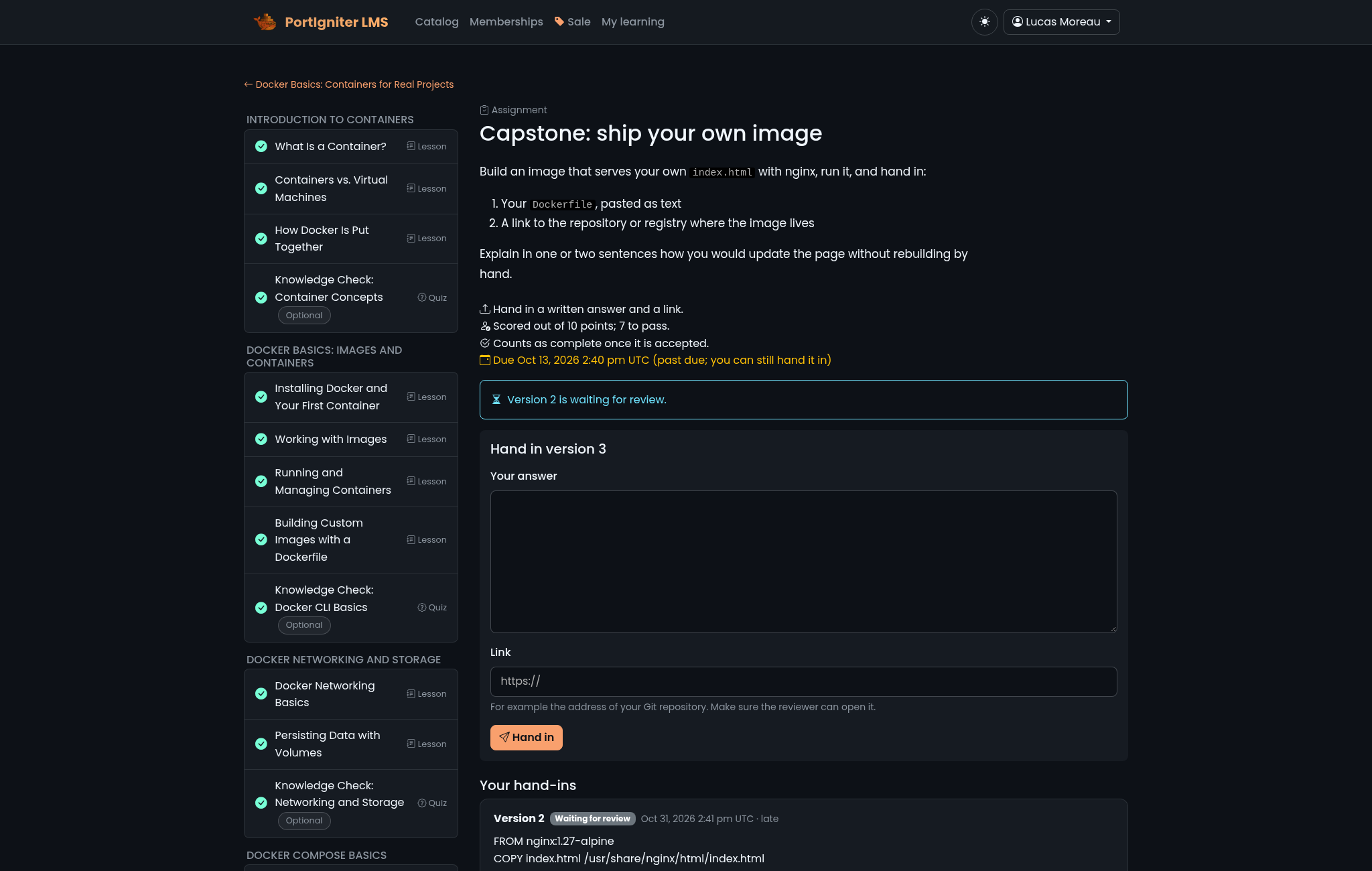
The assignment page shows the instructions, the due date if there is one, and a form for whatever you asked for. After handing in, learners see that their work is waiting for review. Every hand-in is kept as a numbered version, along with its review and feedback.
The review queue
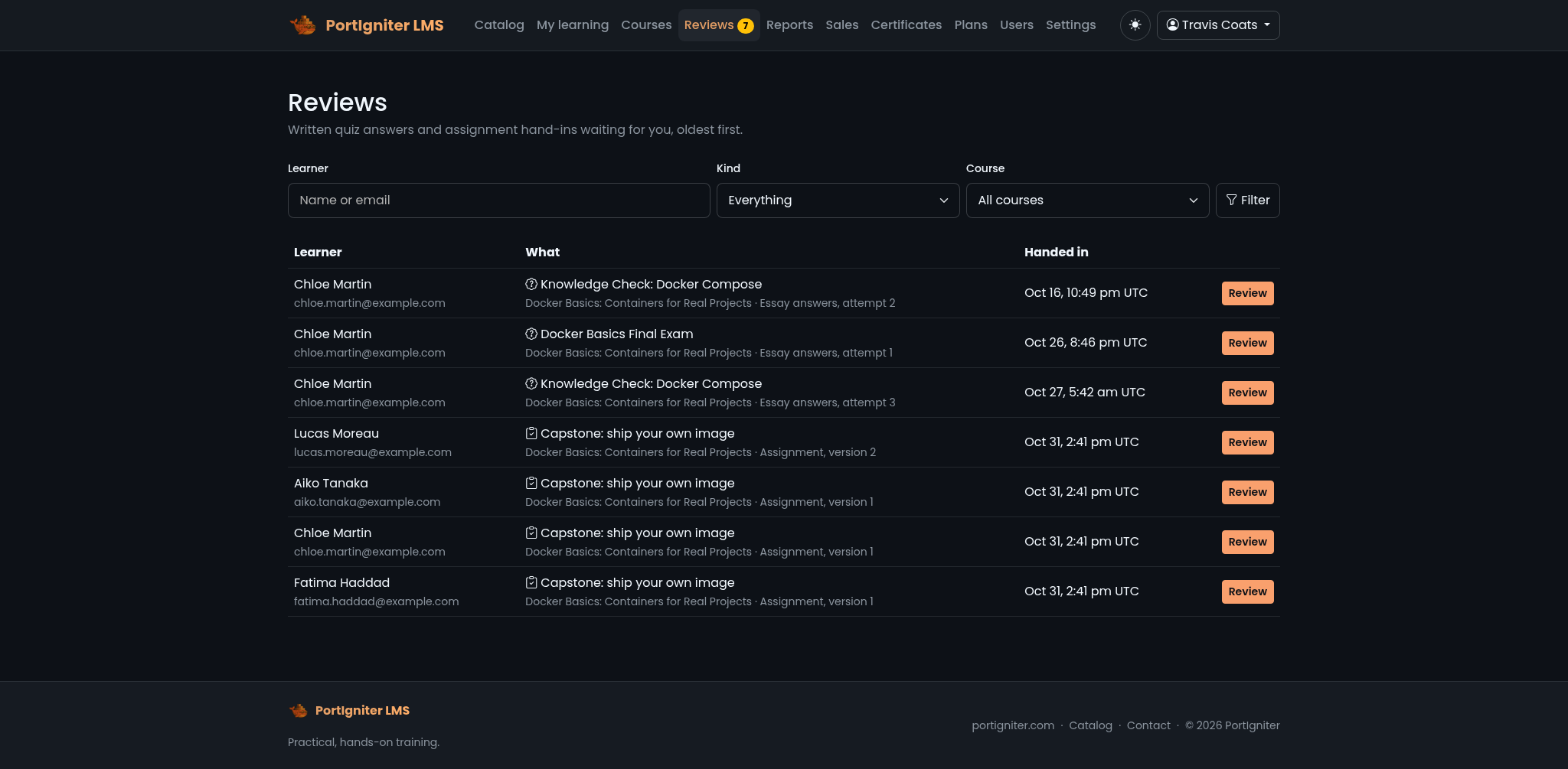
Open Reviews in the header. A badge shows how many items are waiting. The queue lists both assignment hand-ins and quiz essays, and you can filter it by kind, course, and learner.
Reviewing an assignment
Open a hand-in to see the assignment instructions, your notes for reviewers, what the learner handed in, and every earlier version. Then:
- Choose Accept or Ask for a revision, or enter a score if the assignment uses points.
- Optionally write Feedback to the learner in Markdown.
- Click Save review.
Uploaded files open safely as downloads. Written answers and links are shown inline.
Grading an essay
Open an essay attempt to see each essay answer next to its grader notes. Enter a score for each, add optional feedback, and click Save grades. The attempt’s final result is calculated once every essay is graded.
Notifying learners
When you save a review, the learner gets an in-app notification and, if they’ve left review emails turned on in their profile, an email.