
This guide walks you through installing PortIgniter LMS, signing in as the administrator, and creating your first course. The full configuration reference is at the end of this page.
Prerequisites
Docker and Docker Compose are the only requirements. The web server, the application, the background scheduler, and the database all ship as images. If you are not comfortable with Docker, I offer a free course that covers everything you need to know to get up and running fast: Docker Basics.
PortIgniter LMS is designed to run comfortably on a small server, such as 2 vCPUs and 4 GB of memory. Plan your disk space around your course videos, since uploaded media is usually the largest thing the LMS stores.
1. Log in to the PortIgniter registry
PortIgniter LMS images are pulled from the PortIgniter registry. Log in with the email address you used when you purchased your license. Your password is the license key itself.
docker login registry.portigniter.com
If you skip this step, image pulls will fail with an authentication error.
2. Configure your environment
Create a folder for PortIgniter LMS, and in it create a .env file. At a minimum, set the following:
| Variable | What it’s for |
|---|---|
MARIADB_ROOT_PASSWORD |
The database root password. Choose a long random value. |
MARIADB_DATABASE / MARIADB_USER |
The database name and user, for example lms and lms. |
MARIADB_PASSWORD |
The database user’s password. Choose a long random value. |
APP_BASE_URL |
The exact address people use to reach the site, ending in /. For a first local test, use http://localhost:7080/. |
lms.adminEmail / lms.adminPassword |
The administrator account created on first start. The password needs 12 or more characters. |
https:// address in APP_BASE_URL only when a reverse proxy in front of the stack handles HTTPS. If APP_BASE_URL says https:// but you open the site over http://, the page loads with no styling, because its stylesheets and scripts are requested from an address that doesn't answer. See Running behind HTTPS.
lms.adminPassword must be at least 12 characters. A shorter password doesn't stop the site from starting. The administrator account is simply not created, and you'll have nothing to sign in with. The only sign is a warning in docker compose logs php: lms.adminPassword must be at least 12 characters.
You can generate a strong password with openssl rand -hex 32. The database settings have no defaults on purpose: Compose refuses to start until you set them.
MARIADB_* values are applied only when the database is first created. Changing a password in .env later does not change it inside an existing database.
Below is the complete example .env file. Only the REQUIRED section must be filled in. Everything else has a working default, and each setting is explained in the Configuration reference below.
#======================================================================
# PortIgniter LMS: configuration template
#
#   cp .env.example .env      then edit .env and start with: docker compose up -d
#
# .env is read by Docker Compose AND passed into the containers, so it holds
# everything: database, site address, admin account, Stripe, email. It is
# git-ignored and never baked into the image; keep it private and back it up
# somewhere safe (it holds your Stripe keys and database passwords).
#
# Rules of thumb
#   * Lines starting with # are examples. Remove the # to use one.
#   * A value containing spaces must be quoted:  email.fromName = 'My Academy'
#   * Changing .env needs a restart to take effect:  docker compose up -d
#   * Do NOT copy these settings into docker-compose.yml `environment:`
#     (Compose lets it override this file silently).
#
# Only the "REQUIRED" section must be filled in. Everything else has a
# working default and can be left commented out.
#======================================================================


#======================================================================
# REQUIRED
#======================================================================

# ---- Database (the bundled MariaDB) ----------------------------------
# Choose your own long random passwords. There are deliberately no defaults:
# `docker compose up` refuses to start without them. The application uses the
# same values to connect, so there is nothing else to set for the database.
# NOTE: these are read when the database is FIRST created. Changing a password
# here later does not change it inside an existing database volume.
MARIADB_ROOT_PASSWORD=
MARIADB_DATABASE=lms
MARIADB_USER=lms
MARIADB_PASSWORD=

# ---- The address people use to reach the site ------------------------
# Must end in "/". A wrong value shows up as a page with no styling (CSS and
# JavaScript are requested from the wrong address) and as broken links in emails.
APP_BASE_URL=https://lms.example.com/

# production hides error details from visitors. Leave it on production for
# anything public.
CI_ENVIRONMENT=production

# ---- Your administrator account --------------------------------------
# Created when the container starts, ONLY if no active administrator exists yet.
# After that it is ordinary data managed under Admin > Users, and changing or
# removing these lines never edits or deletes anything. The password needs 12+
# characters; you can delete the password line once you have signed in.
# Sign in at /login with the EMAIL address.
lms.adminEmail    = admin@example.com
lms.adminPassword =
lms.adminName     = 'Administrator'


#======================================================================
# RUNNING BEHIND HTTPS (do this for a real site)
#======================================================================

# Only send the session cookie over HTTPS. Turn on once the site is served
# over https:// (with it on, signing in over plain http will not stick).
# cookie.secure = true

# Redirect http:// requests to https://. Use only when HTTPS ends at this stack's
# nginx, or your proxy forwards X-Forwarded-Proto; otherwise it can loop.
# app.forceGlobalSecureRequests = true

# Another proxy in front of this stack (Traefik, Caddy, Cloudflare, a load
# balancer)? List its address(es) so the app sees each visitor's real IP
# (sign-in throttling is per IP) and trusts its X-Forwarded-Proto. Comma list of
# IPs or CIDR ranges; optional =Header (default X-Forwarded-For). Leave empty
# when visitors reach this stack's nginx directly.
# app.proxyIPs = 172.16.0.0/12

# HSTS: browsers refuse plain http for this site for this many seconds once
# they've seen it over https. Sent only when the base URL is https://. Set 0
# before ever moving the site back to http.
# lms.hstsMaxAge = 31536000

# Encrypts two-step sign-in secrets in the database. Generate once and keep it:
# losing or changing it means everyone using two-step sign-in must have it reset
# by an administrator. Generate with:  php -r 'echo "hex2bin:".bin2hex(random_bytes(32)),"\n";'
# encryption.key = hex2bin:...


#======================================================================
# EMAIL (strongly recommended: nobody can register, reset a password, or
# receive a purchase/certificate email without it)
#======================================================================

# email.protocol   = smtp
# email.SMTPHost   = smtp.example.com
# email.SMTPPort   = 587
# tls for port 587, ssl for port 465
# email.SMTPCrypto = tls
# email.SMTPUser   = ''
# email.SMTPPass   = ''
# email.fromEmail  = noreply@example.com
# email.fromName   = 'My Academy'


#======================================================================
# SELLING COURSES AND MEMBERSHIPS (Stripe). Skip if everything is free.
#======================================================================
# One switch picks the key pair, so you can keep both filled in:
#   stripe.testMode = true   -> sandbox keys, no real money moves
#   stripe.testMode = false  -> LIVE keys, real payments
# With no key for the active mode, course pages say purchasing is unavailable.
#
# Webhook (Stripe Dashboard > Developers > Webhooks): endpoint
#     https://YOUR-SITE/webhook/stripe
# subscribed to these events:
#     checkout.session.completed
#     checkout.session.async_payment_succeeded
#     charge.refunded
#     charge.dispute.created
#     customer.subscription.updated
#     customer.subscription.deleted
#     invoice.paid
# Test mode and live mode each have their own webhook and their own whsec_ secret.
# Promotion codes are created in the Stripe Dashboard (Products > Coupons).

# stripe.testMode          = true
# stripe.publicTestKey     = pk_test_xxx
# stripe.privateTestKey    = sk_test_xxx
# stripe.testWebhookSecret = whsec_xxx
# stripe.publicLiveKey     = pk_live_xxx
# stripe.privateLiveKey    = sk_live_xxx
# stripe.liveWebhookSecret = whsec_xxx

# Currency for prices that don't name one (ISO code, lowercase).
# stripe.currency          = usd


#======================================================================
# SITE DEFAULTS (all optional)
#======================================================================
# Starting values for what administrators edit under Admin > Settings. Once an
# administrator saves that page, the saved values win and these are ignored.

# lms.siteName     = 'PortIgniter LMS'
# lms.tagline      = 'Written lessons, video, hands-on labs and knowledge checks.'
# lms.footerText   = 'Practical, hands-on training.'
# Also printed on certificates.
# lms.companyName  = 'My Company'
# lms.companyUrl   = 'https://www.example.com'
# lms.supportEmail = 'support@example.com'
# Largest logo / hero image upload, in KB.
# lms.logoMaxKb    = 512

# Largest video upload for course authors, in MB.
# lms.videoMaxMb = 500

# Let nginx deliver course videos/files after the app checks access (faster,
# handles seeking). Needs this nginx location (the compose file already mounts
# the writable volume read-only at /var/www/lms-writable):
#   location /_protected/ { internal; alias /var/www/lms-writable/; }
# lms.accelRedirect = false
# lms.accelPrefix   = /_protected/

# Daily backups made by the scheduler service (php spark lms:backup), kept in
# writable/backups (same volume as the data: copy them off the host too).
# Restore: docker compose exec php php spark lms:restore <file>
# lms.backupDaily = false
# lms.backupHour  = 3
# lms.backupKeep  = 7

# May visitors create their own accounts? (Buying a course or holding an
# invitation key always lets a person create one.)
# lms.allowRegistration = true
# lms.passwordMinLength = 10

# Show a promotion-code box on the Stripe payment page.
# lms.allowPromoCodes = true

# Custom CSS and tracking snippets, added to every page except the admin area.
# Easier to paste them in Admin > Settings > Custom code.
# lms.customCss    = ''
# lms.customHead   = ''
# lms.customFooter = ''


#======================================================================
# DOCKER / COMPOSE (all optional)
#======================================================================

# LMS release to run (default: the release the compose file was published
# with). Set a newer one and run `docker compose up -d` to upgrade.
# LMS_TAG=2026.10.25

# Host port for the site (plain HTTP; put HTTPS on your reverse proxy). Use 80
# if this stack faces the internet directly, or 127.0.0.1:7080 so only a proxy
# on the same host can reach it.
# HTTP_PORT=7080

# How long the app container waits for the database on start (seconds).
# LMS_DB_WAIT_SECONDS=60
.env file holds your database passwords and Stripe keys. Keep it private, and back it up somewhere safe, separately from the server. Leave CI_ENVIRONMENT=production on any site other people can reach.
Two formatting rules trip people up:
- Quote values that contain spaces, for example
email.fromName = 'My Academy'. An unquoted space stops the application from starting. - Don’t put comments after a value on the same line. Keep comments on their own lines.
3. Create your compose file
Save the file below as docker-compose.yml in the same folder as your .env file. Settings belong in .env, not in this file.
# PortIgniter LMS
#
#   1. docker login registry.portigniter.com      (your license email + license key)
#   2. Put this file and your .env in the same folder
#   3. docker compose up -d
#
# Settings live in .env, not in this file. Variables this file reads from .env:
#
#   MARIADB_ROOT_PASSWORD  required  database root password (choose a long random one)
#   MARIADB_DATABASE       required  database name, e.g. lms
#   MARIADB_USER           required  database user, e.g. lms
#   MARIADB_PASSWORD       required  database user's password
#                                    (the four MARIADB_* values are applied only when the
#                                    database is first created; changing them later does
#                                    not change an existing database)
#   LMS_TAG                optional  LMS release to run (default below). Change it to upgrade.
#   HTTP_PORT              optional  host port for the site, default 7080. Use 80 when this
#                                    stack faces the internet directly, or 127.0.0.1:7080 to
#                                    accept connections only from a reverse proxy on this host.
#   LMS_DB_WAIT_SECONDS    optional  how long the app waits for the database on start, default 60
#
# Every application setting (site address APP_BASE_URL, admin account lms.admin*, email.*,
# stripe.*, lms.*, cookie.*, app.*, ...) is also set in .env and passed to the app as is.
# Don't add them under `environment:` below: Compose would let those override .env.
# Any change to .env applies after: docker compose up -d
#
# The site speaks plain HTTP on HTTP_PORT. For HTTPS, put your reverse proxy or load
# balancer in front of it (and set APP_BASE_URL to the https:// address).
#
# Your data is in two named volumes; back up both:
#   lms_writable   uploads, courses, certificates, backups, sessions, logs
#   db_data        the database

x-logging: &logging
  driver: json-file
  options:
    max-size: "10m"
    max-file: "5"

networks:
  lms:

volumes:
  db_data:
  lms_writable:
  public_assets:

services:
  # One-shot job on each start: makes the data volumes writable by the app (uid 1000).
  writable-init:
    image: registry.portigniter.com/lms:${LMS_TAG:-2026.10.25}
    user: root
    restart: "no"
    entrypoint: ["sh", "-c"]
    command:
      - >-
        mkdir -p /writable/cache /writable/logs /writable/session /writable/debugbar /writable/uploads/branding
        && find /writable /public ! -user 1000 -exec chown 1000:1000 {} +
    volumes:
      - lms_writable:/writable
      - public_assets:/public
    networks:
      - lms

  nginx:
    image: registry.portigniter.com/nginx-base:2026.10.22
    restart: unless-stopped
    logging: *logging
    ports:
      - "${HTTP_PORT:-7080}:80"
    volumes:
      - public_assets:/var/www/html/public:ro
      - lms_writable:/var/www/lms-writable:ro
    depends_on:
      - php
    networks:
      - lms

  # The application. Applies database updates and creates the first administrator on start.
  php:
    image: registry.portigniter.com/lms:${LMS_TAG:-2026.10.25}
    restart: unless-stopped
    logging: *logging
    env_file:
      - .env
    volumes:
      - lms_writable:/var/www/html/writable
      - public_assets:/public-export
    depends_on:
      writable-init:
        condition: service_completed_successfully
      mariadb:
        condition: service_healthy
    networks:
      - lms

  # Background jobs every 2 minutes: finishes timed quizzes nobody came back to, and makes
  # the daily backup when lms.backupDaily = true in .env (see lms.backupHour, lms.backupKeep).
  scheduler:
    image: registry.portigniter.com/lms:${LMS_TAG:-2026.10.25}
    restart: unless-stopped
    logging: *logging
    env_file:
      - .env
    environment:
      LMS_AUTO_MIGRATE: "0"
    command: ["sh", "-c", "while true; do php spark quiz:finalize-expired --no-header || true; php spark lms:backup --if-due --no-header || true; sleep 120; done"]
    volumes:
      - lms_writable:/var/www/html/writable
    depends_on:
      - php
    networks:
      - lms

  mariadb:
    image: registry.portigniter.com/mariadb:12.3
    restart: unless-stopped
    logging: *logging
    environment:
      MARIADB_ROOT_PASSWORD: ${MARIADB_ROOT_PASSWORD:?Set MARIADB_ROOT_PASSWORD in .env}
      MARIADB_DATABASE: ${MARIADB_DATABASE:?Set MARIADB_DATABASE in .env}
      MARIADB_USER: ${MARIADB_USER:?Set MARIADB_USER in .env}
      MARIADB_PASSWORD: ${MARIADB_PASSWORD:?Set MARIADB_PASSWORD in .env}
    healthcheck:
      test: ["CMD", "healthcheck.sh", "--connect", "--innodb_initialized"]
      interval: 10s
      timeout: 5s
      retries: 12
      start_period: 30s
    volumes:
      - db_data:/var/lib/mysql
    networks:
      - lms
4. Start PortIgniter LMS
From the folder that holds both files, start the stack:
docker compose up -d
On first start, PortIgniter LMS:
- Prepares the data volumes so the application can write to them.
- Waits for the database, then creates all of its tables.
- Creates your administrator account from
lms.adminEmailandlms.adminPassword. - Publishes its stylesheets, scripts, and images for nginx to serve.
- Starts the scheduler, which checks every 2 minutes for timed quizzes to finish and backups to make.
You can follow along with docker compose logs -f php. When the log shows ready to handle connections, the site is ready.
5. Sign in
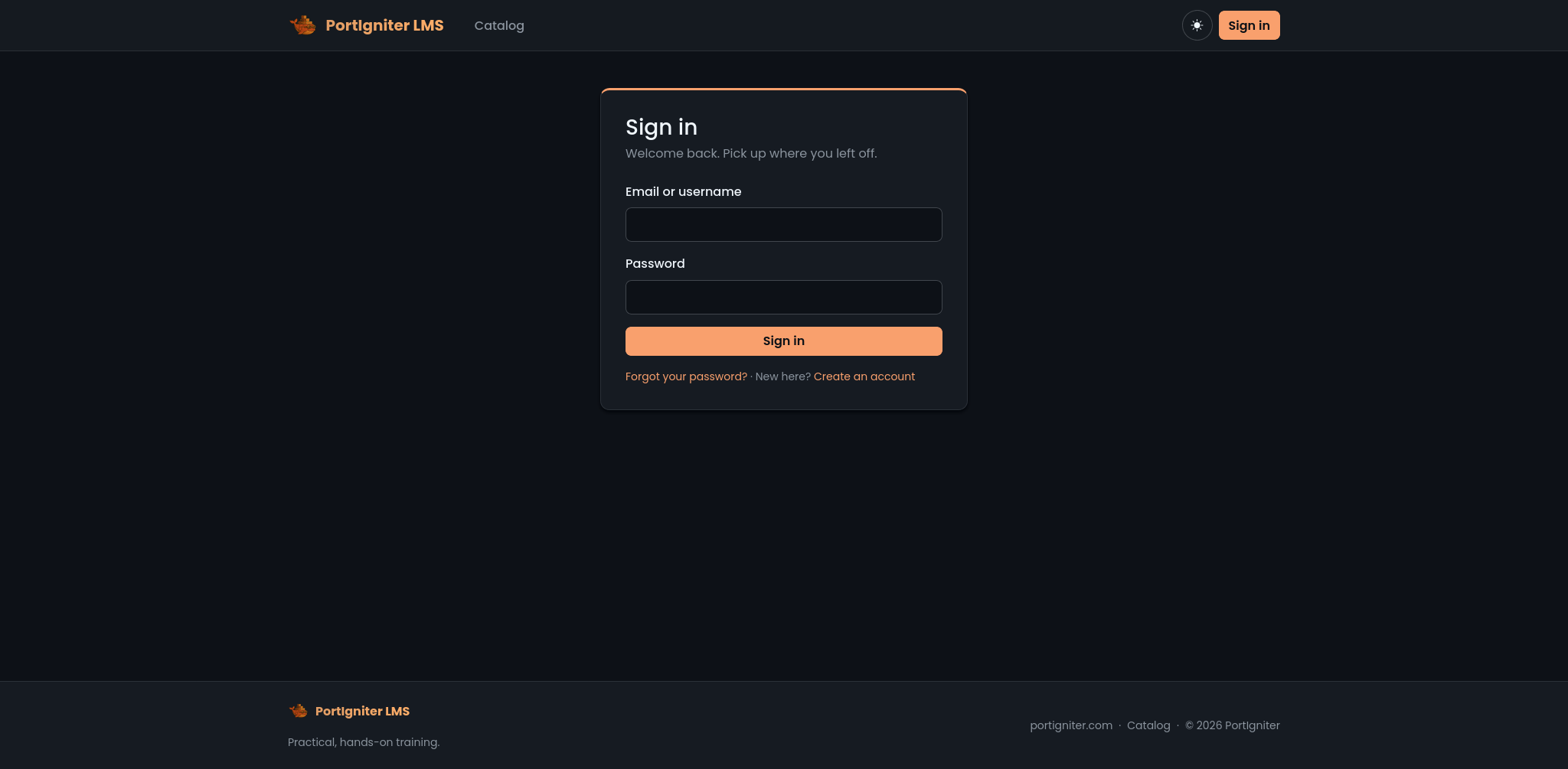
Open the address you set in APP_BASE_URL. For a quick local test, set APP_BASE_URL=http://localhost:7080/ and open that address. You should see the front page of your new course catalog, which is empty for now.
Click Sign in and use the email address and password from your .env file.
If your credentials are refused, check docker compose logs php for a warning that the administrator wasn’t created. The usual cause is a password shorter than 12 characters. See Troubleshooting.
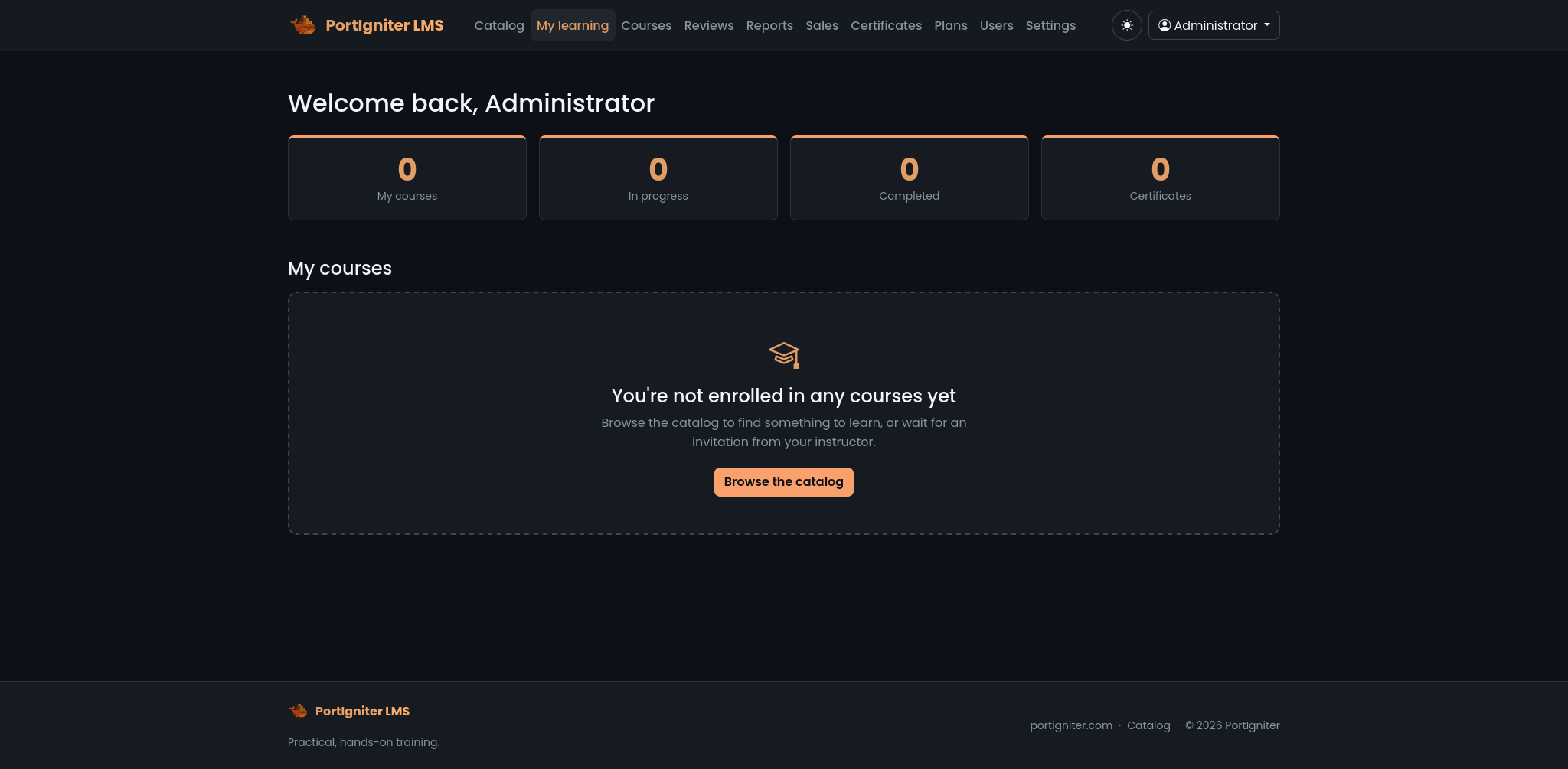
After signing in, you will land on your dashboard. The administrator menus in the header give you access to Courses, Reviews, Reports, Users, and Settings.
lms.adminPassword line from .env. The account is now ordinary data, and changing or removing these lines never edits or deletes it. Manage it under Admin > Users from now on.
6. Make it yours
Open Admin > Settings and set your site name, tagline, footer text, support email, and logo. Upload a front-page image if you want one. See Site Settings for every option.
If you plan to let people register, reset passwords, or buy courses, configure email now. Without it, nobody receives account links.
7. Create your first course
Open Admin > Courses, give your course a title, choose A first module and lesson, and click Create. The course builder opens with a module and a lesson ready to edit. Add a text block, write a few lines, then click Publish.
That’s a published course. Building Courses covers the builder in depth.
Running behind HTTPS
For any real site, terminate HTTPS at a reverse proxy in front of the stack, then update .env:
- Set
APP_BASE_URLto yourhttps://address. - Set
cookie.secure = trueso session cookies are only sent over HTTPS. - If your proxy runs on the same host, set
HTTP_PORT=127.0.0.1:7080so only the proxy can reach the site. - If your proxy is a separate system, such as Traefik in another network, Cloudflare, or a load balancer, list its address in
app.proxyIPs. This lets PortIgniter LMS see each visitor’s real IP address, which sign-in throttling depends on.
Apply the changes with docker compose up -d.
Configuration reference
All settings live in your .env file. Everything not listed as required in step 2 has a working default. After any change, run docker compose up -d to apply it.
Required
| Variable | Default | Meaning |
|---|---|---|
MARIADB_ROOT_PASSWORD |
None | Database root password. Applied only when the database is first created. |
MARIADB_DATABASE |
None | Database name, such as lms. |
MARIADB_USER |
None | Database user, such as lms. |
MARIADB_PASSWORD |
None | Database user’s password. |
APP_BASE_URL |
None | The site address, ending in /. A wrong value shows up as a page with no styling and as broken links in emails. |
CI_ENVIRONMENT |
production |
Leave it on production for anything public. It hides error details from visitors. |
lms.adminEmail |
None | The first administrator’s email address, used to sign in. |
lms.adminPassword |
None | The first administrator’s password, 12 or more characters. Delete it after you sign in. |
lms.adminName |
Administrator |
The first administrator’s display name. |
The administrator account is created only when no active administrator exists yet.
HTTPS and proxies
| Variable | Default | Meaning |
|---|---|---|
cookie.secure |
false |
Send the session cookie only over HTTPS. Turn it on once the site uses https://, or signing in over plain HTTP won’t stick. |
app.forceGlobalSecureRequests |
false |
Redirect http:// requests to https://. Use only when your proxy forwards X-Forwarded-Proto, or it can loop. |
app.proxyIPs |
Empty | Comma-separated IP addresses or CIDR ranges of proxies in front of the stack. Add =Header to use a header other than X-Forwarded-For. Leave it empty when visitors reach nginx directly. |
lms.hstsMaxAge |
31536000 |
How long browsers should insist on HTTPS, in seconds. Sent only when APP_BASE_URL is https://. Set it to 0 before ever moving the site back to HTTP. |
encryption.key |
None | Encrypts two-step sign-in secrets in the database. Generate it once and keep it. See Users & Sign-In. |
PortIgniter LMS sends account links, purchase confirmations, review results, and certificates by email. Every message goes out as branded HTML with a plain-text version.
| Variable | Default | Meaning |
|---|---|---|
email.protocol |
None | Set to smtp. |
email.SMTPHost |
None | Your SMTP server. |
email.SMTPPort |
None | Usually 587 (with tls) or 465 (with ssl). |
email.SMTPCrypto |
None | tls or ssl, matching the port. |
email.SMTPUser / email.SMTPPass |
None | SMTP credentials. |
email.fromEmail |
None | The address emails come from. |
email.fromName |
None | The sender name. Quote it if it contains spaces. |
Payments (Stripe)
| Variable | Default | Meaning |
|---|---|---|
stripe.testMode |
true |
true uses your test keys and moves no real money. false uses your live keys. |
stripe.publicTestKey / stripe.privateTestKey |
None | Your Stripe test-mode publishable and secret keys. |
stripe.testWebhookSecret |
None | The signing secret of your test-mode webhook. |
stripe.publicLiveKey / stripe.privateLiveKey |
None | Your Stripe live-mode keys. |
stripe.liveWebhookSecret |
None | The signing secret of your live-mode webhook. |
stripe.currency |
usd |
The currency for prices that don’t name one, as a lowercase ISO code. |
See Selling Courses for the full Stripe setup, including the webhook events to subscribe to.
Site defaults
These are starting values for what administrators edit under Admin > Settings. Once an administrator saves that page, the saved values win.
| Variable | Default | Meaning |
|---|---|---|
lms.siteName |
PortIgniter LMS |
Shown in the header, page titles, and emails. |
lms.tagline |
Built in | Shown on the front page. |
lms.footerText |
Built in | Shown in the site footer. |
lms.companyName / lms.companyUrl |
None | Your company. The name is also printed on certificates. |
lms.supportEmail |
None | Shown in email footers. |
lms.logoMaxKb |
512 |
Largest logo or front-page image upload, in KB. |
lms.allowRegistration |
true |
Whether visitors can create their own accounts. |
lms.passwordMinLength |
10 |
Minimum password length for learners. |
lms.allowPromoCodes |
true |
Show a promotion-code box on the Stripe payment page. |
lms.customCss / lms.customHead / lms.customFooter |
Empty | Custom CSS and snippets. Easier to paste in Admin > Settings > Custom code. |
Media delivery
| Variable | Default | Meaning |
|---|---|---|
lms.videoMaxMb |
500 |
Largest video upload for course authors, in MB. |
lms.accelRedirect |
false |
Let nginx deliver course videos and files after the application checks access. Faster for heavy video traffic, and requires an extra nginx location. See How PortIgniter LMS Works. |
lms.accelPrefix |
/_protected/ |
The internal nginx location used with lms.accelRedirect. |
Backups
| Variable | Default | Meaning |
|---|---|---|
lms.backupDaily |
false |
Make a backup every day. |
lms.backupHour |
3 |
The hour (UTC) the daily backup is made. |
lms.backupKeep |
7 |
How many daily backups to keep. |
See Backups & Upgrades.
Docker and Compose
| Variable | Default | Meaning |
|---|---|---|
LMS_TAG |
2026.10.25 |
The release to run. Set a newer one and run docker compose up -d to upgrade. |
HTTP_PORT |
7080 |
The host port for the site. Use 80 if the stack faces the internet directly, or 127.0.0.1:7080 so only a proxy on the same host can reach it. |
LMS_DB_WAIT_SECONDS |
60 |
How long the application waits for the database on start. |
Next steps
- How PortIgniter LMS Works explains what each container does and where your data lives.
- Building Courses covers the course builder.
- Backups & Upgrades covers protecting your data and moving to a new release.