
A lesson is an ordered list of blocks. Drag a block from the component palette into a lesson, or use the + insert menu between two blocks. Each block has its own simple form, and the builder shows a live preview rendered by the server, so what you see is exactly what learners see.
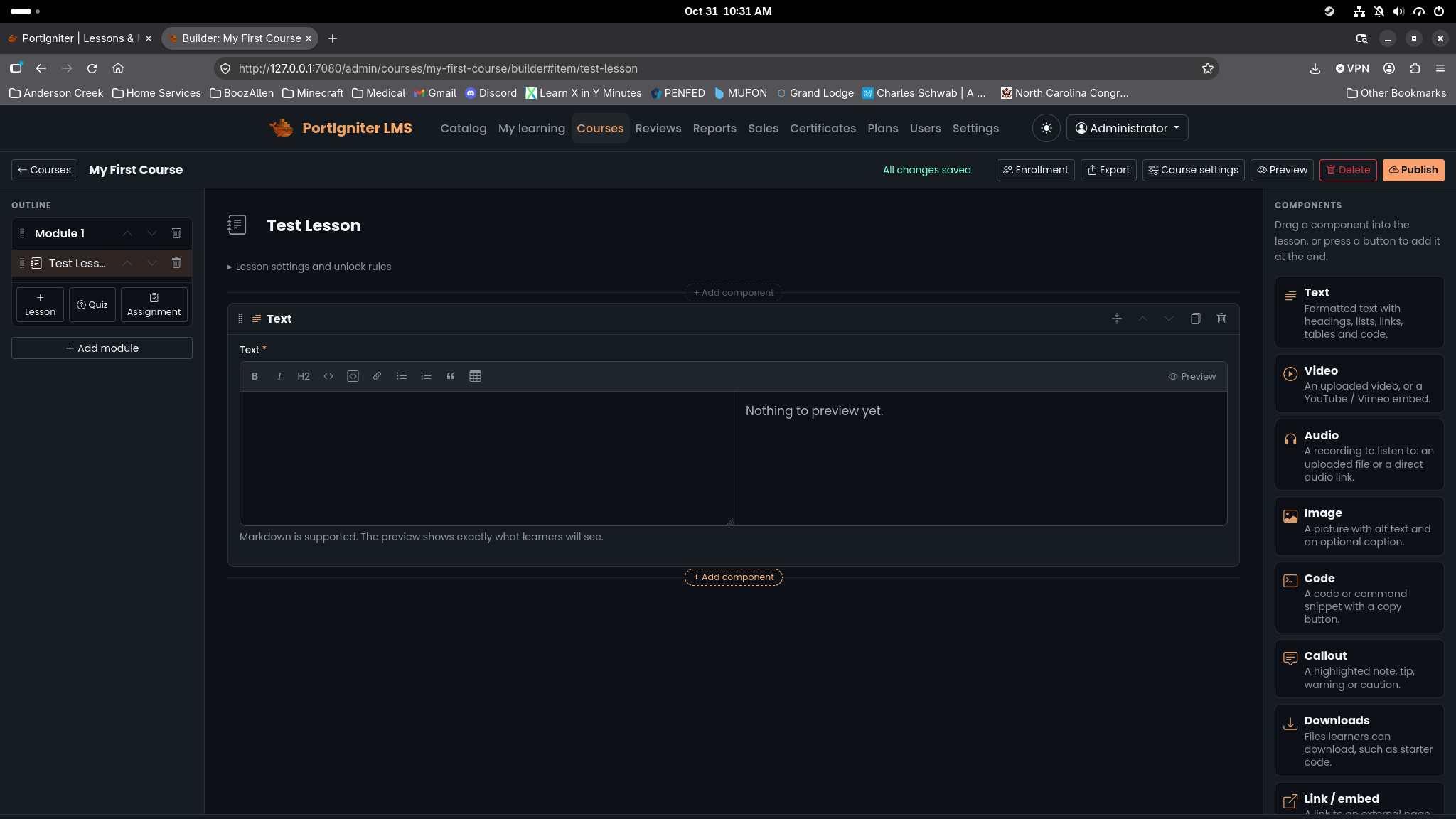
Block types
| Block | Use it for |
|---|---|
| Text | Written content in Markdown, with a formatting toolbar and live preview. |
| Callout | A highlighted note, tip, important point, warning, or caution, with an optional title. |
| Code | A code sample with a language, an optional filename, highlighted lines, and a copy button. |
| Image | A picture with required alt text and an optional caption. |
| Video | An uploaded video, a direct video URL, or a YouTube or Vimeo video, with captions and a transcript. |
| Audio | An uploaded audio file or a direct audio URL, with a transcript. |
| Download | One or more files for learners to download, each with a label and an optional description. |
| Embed | A YouTube or Vimeo player, or a link card for any other web page. |
| Steps | A hands-on lab checklist. Each step can include a command with a copy button and the expected output. |
Writing in Markdown
Text blocks, callouts, transcripts, and quiz questions all use Markdown, including GitHub-style tables, task lists, strikethrough, and fenced code blocks.
- Start headings at
##. The lesson title is already the page heading. - Link to your own files by their asset path, such as
or[Cheat sheet](assets/cheat-sheet.pdf). - Use
<details>and<summary>for collapsible hints and expected output. Other raw HTML is removed for safety, including scripts, iframes, inline styles, and event handlers.
Video
Add a Video block and choose where the video comes from:
| Source | What to enter |
|---|---|
| Upload | An MP4 or WebM file. H.264 video with AAC audio plays everywhere. The upload limit is 500 MB by default (lms.videoMaxMb). |
| URL | A direct https:// link to an .mp4 or .webm file. |
| YouTube | The video ID or a full YouTube link. |
| Vimeo | The video ID or a full Vimeo link. |
Uploads show a progress bar and can be canceled. For uploaded and direct-URL videos, the built-in player remembers each learner’s speed and volume and resumes where they left off. You can also add a poster image, caption tracks in WebVTT (.vtt) format in as many languages as you like, and a transcript shown beneath the video.
Tracking watched video
Uploaded and direct-URL videos report which parts a learner actually played. Skipping ahead doesn’t count. Set a lesson to complete when its videos are watched, and use each video’s Count as watched at setting to choose how much must be played (90% by default). YouTube and Vimeo play in their own players and can’t be tracked, so lessons that only use them should be completed manually.
Audio
The Audio block plays an uploaded MP3, M4A, OGG, or WAV file, or a direct link to one. Always include a transcript.
Labs with the Steps block
The Steps block turns a lesson into a hands-on lab. Each step has instructions, an optional command shown with a copy button, and optional expected output that learners can expand to check their work.
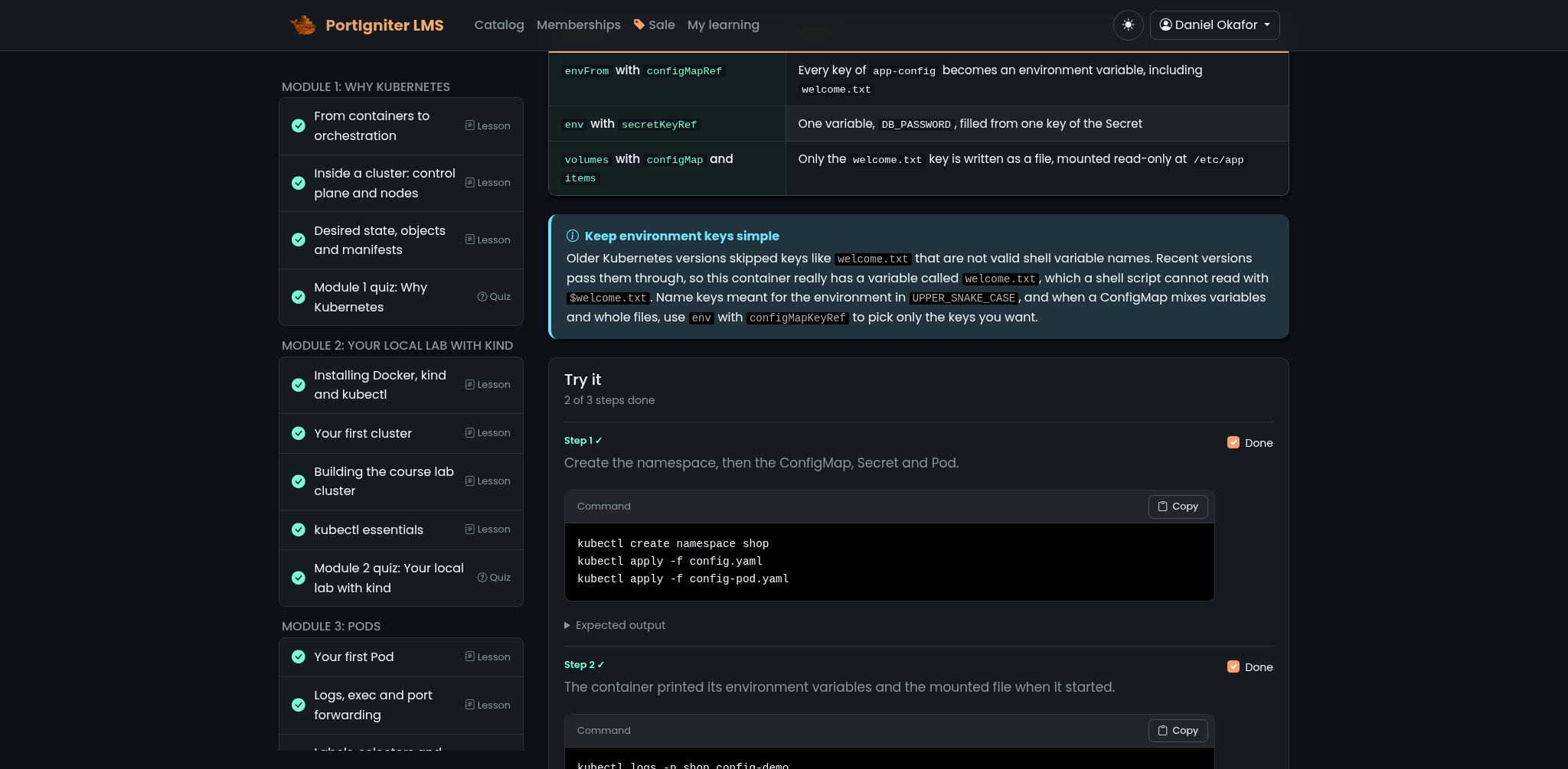
Learners tick each step as they finish it, and their ticks are saved, so they can come back to a lab later and pick up where they stopped. Set the lesson to complete when every step is ticked.
A good lab lesson usually pairs a scenario and setup notes in a text block, starter files in a download block, the Steps block itself, and troubleshooting tips in a callout. When you need proof of the finished work, follow the lab with an assignment.
Lesson completion
Open Lesson settings and unlock rules above the lesson’s blocks, and choose when the lesson Counts as complete:
| Option | The lesson completes when |
|---|---|
| The learner clicks “Mark complete” (default) | The learner clicks Mark complete. |
| The learner opens it | The learner opens the lesson. |
| The learner watches the video(s) | The learner has watched the lesson’s uploaded or direct-URL videos, at each video’s Count as watched at percentage. |
| The learner ticks every step | The learner has ticked every step in the lesson’s Steps blocks. |
You can also set the lesson’s length in minutes, which is added up into the course length.
Files and limits
Everything a lesson uses is uploaded into the course and served only to people allowed to see it. Each upload is checked by its content, not just its extension, so a renamed file is rejected.
| Type | Extensions | Largest file |
|---|---|---|
| Images | png, jpg, jpeg, webp, gif |
5 MB |
| Video | mp4, webm |
500 MB (configurable) |
| Audio | mp3, m4a, ogg, wav |
200 MB |
| Captions | vtt |
1 MB |
| Documents | pdf, zip |
50 MB |
| Text | txt, md, csv |
5 MB |
SVG images and scripts are never accepted. File names may contain letters, digits, periods, underscores, and dashes.
Accessibility
PortIgniter LMS is designed to be keyboard operable and readable by screen readers, and it nudges you toward accessible content:
- Image blocks require alt text. Describe what the image shows.
- Video supports captions and transcripts, and audio supports transcripts.
- Every drag-and-drop action in the builder has a button alternative.