
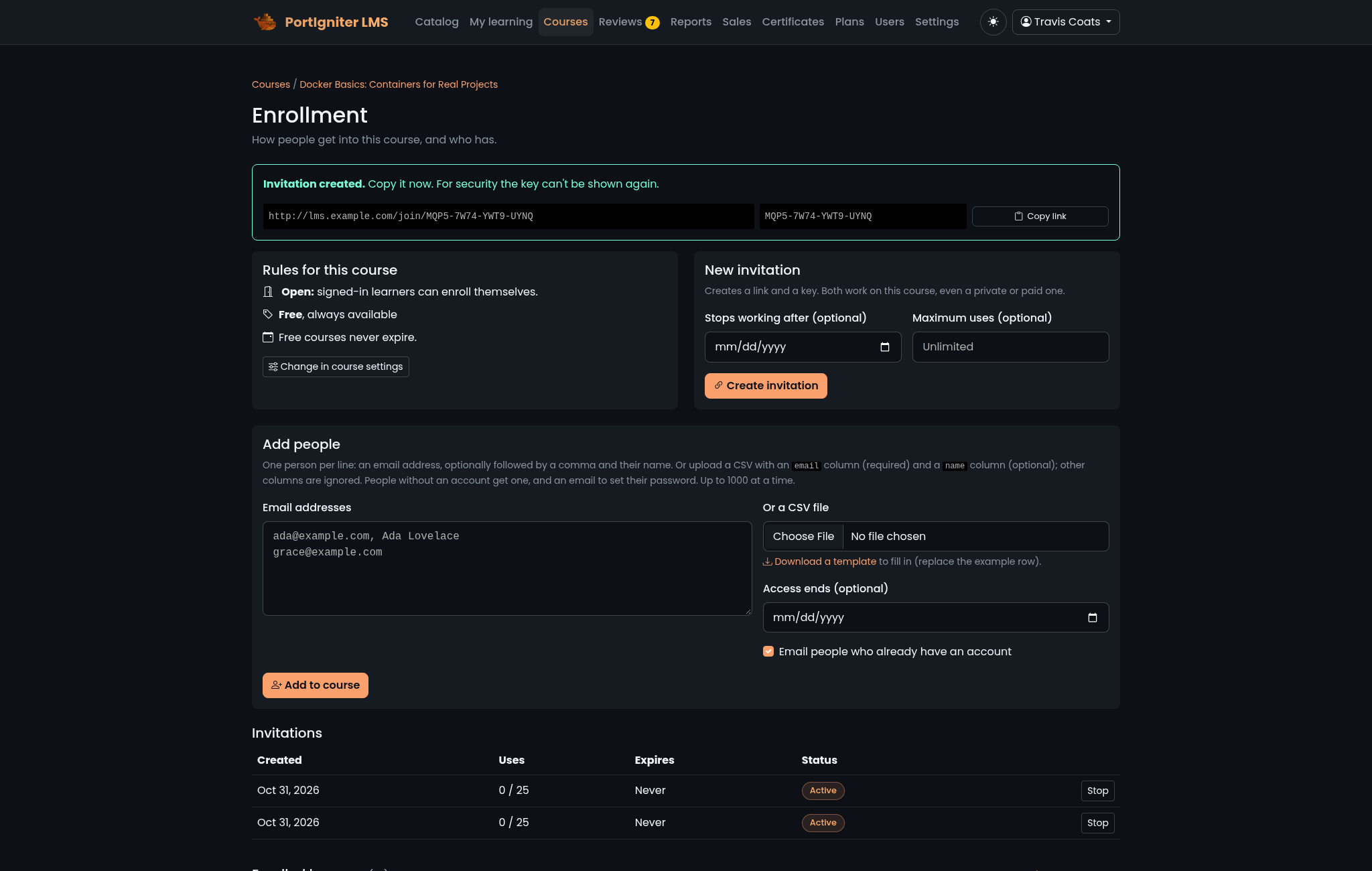
Every course’s Enrollment page, opened from the builder toolbar, shows how people get into that course and who already has. The rules come from the course’s Who can find this course and Who can enroll settings. See Course settings.
Ways into a course
| Path | Who it’s for |
|---|---|
| Self-enrollment | Any signed-in learner, on a free course set to Open. |
| Purchase | Anyone, on a paid course set to Open. Buyers don’t need an account first. See Selling Courses. |
| Membership | Subscribers to a plan that covers the course. See Memberships. |
| Invitation link or key | Anyone you share it with, on any course, including private and paid ones. Access through a key on a paid course is complimentary. |
| Added by staff | People you add by email address or CSV file. |
Invitations only work once the course is published.
Invitation links and keys
Under New invitation, optionally set:
- Stops working after: an expiry date for the invitation.
- Maximum uses: how many people can use it.
- Access ends: an end date for the access it grants.
Click Create invitation. You get a link and a key, and both work for this course. The key is shown once and stored only as a hash, so copy it right away. Click Copy link to share the link.
People open the link, or enter the key at /join. If they don’t have an account yet, they can create one from the invitation page and land back on it to confirm. A visitor holding a valid key can always create an account, even when public registration is turned off.
The Invitations list shows each invitation’s uses and status. Click Stop to retire one early.
Add people by email or CSV
Under Add people, either paste email addresses, one per line, optionally followed by a comma and a name, or upload a CSV file with an email column and an optional name column. Click Download a template for a ready-made file. You can add up to 1,000 people at a time.
- People who already have an account are enrolled right away. Tick Email people who already have an account to let them know.
- New addresses get an account with no password and an email with a link to choose one.
- Lines that can’t be used, such as malformed addresses, are listed so you can fix them.
Managing a learner’s access
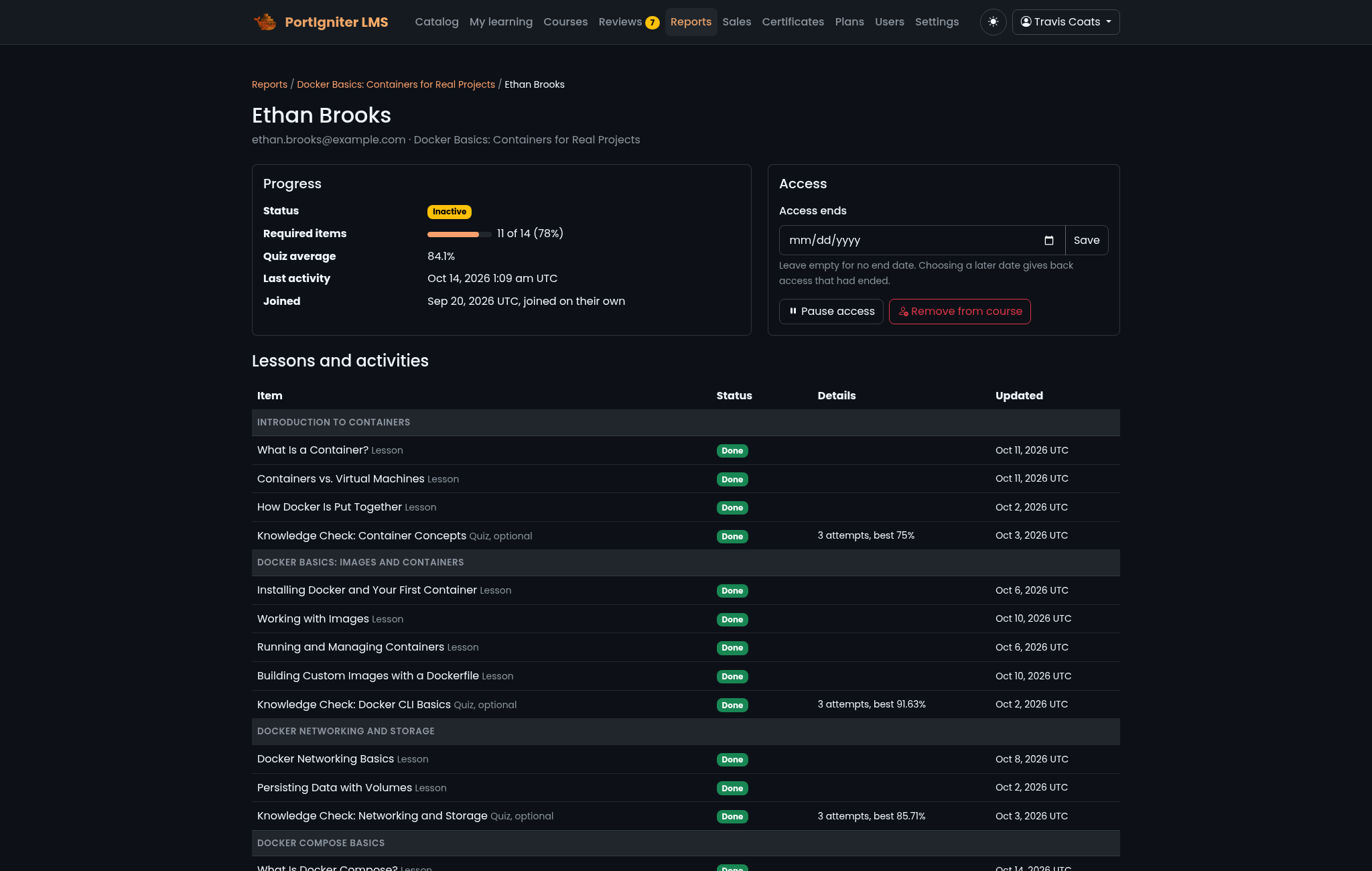
Open Reports, pick the course, and click a learner’s name. Their page shows progress through every item, quiz attempts, hand-ins, and video watched, plus these actions:
| Action | What it does |
|---|---|
| Access ends | Set or change the date access ends. Leave it empty for no end date. Choosing a later date gives back access that had ended. |
| Pause access | Temporarily blocks the learner from the course. Only you can lift it. Purchases, memberships, and refunds never override a pause by staff. |
| Add back to the course | Lifts a pause or undoes a removal. |
| Remove from course | Takes the learner out of the course. Their progress is kept, and adding them back restores it. |
Enrollment statuses
| Status | Meaning |
|---|---|
| Active | The learner can work through the course. |
| Completed | The learner finished every required item. They keep full access. |
| Paused | Access is blocked, either by staff or by the system after a refund, dispute, or ended membership. |
| Expired | The access period ended. |
| Removed | Staff took the learner out of the course. Progress is kept. |
When access ends
Free courses never expire. Paid courses can grant access for a set number of days, and invitations can carry an end date.
When access to a course purchased or granted by key ends, the learner keeps read-only access to the lessons they already completed. They can’t open new items, take quizzes, or record progress, but their progress and certificates are untouched. Redeeming a valid key or buying again renews access.
When a membership ends, access to the courses it covered ends completely. Courses the learner bought separately are never affected by a membership ending.