A PortIgniter LMS backup is a single zip file holding the whole database and every course, upload, and certificate file. You can make one from the admin area, on a daily schedule, or from the command line, and restore it with one command.
What a backup contains
- Every database table, including accounts, enrollments, progress, quiz attempts, payments, and settings.
- Every file under uploads, courses, and deleted courses.
- A manifest recording the release it came from and how many rows each table had.
Caches, logs, sessions, and older backups are left out. Backups contain password hashes and account tokens, so treat them as sensitive.
Your .env file is not part of a backup. Keep a copy of it somewhere safe, separately.
Admin > Backups
Open Admin > Backups from the Settings page or the account menu.
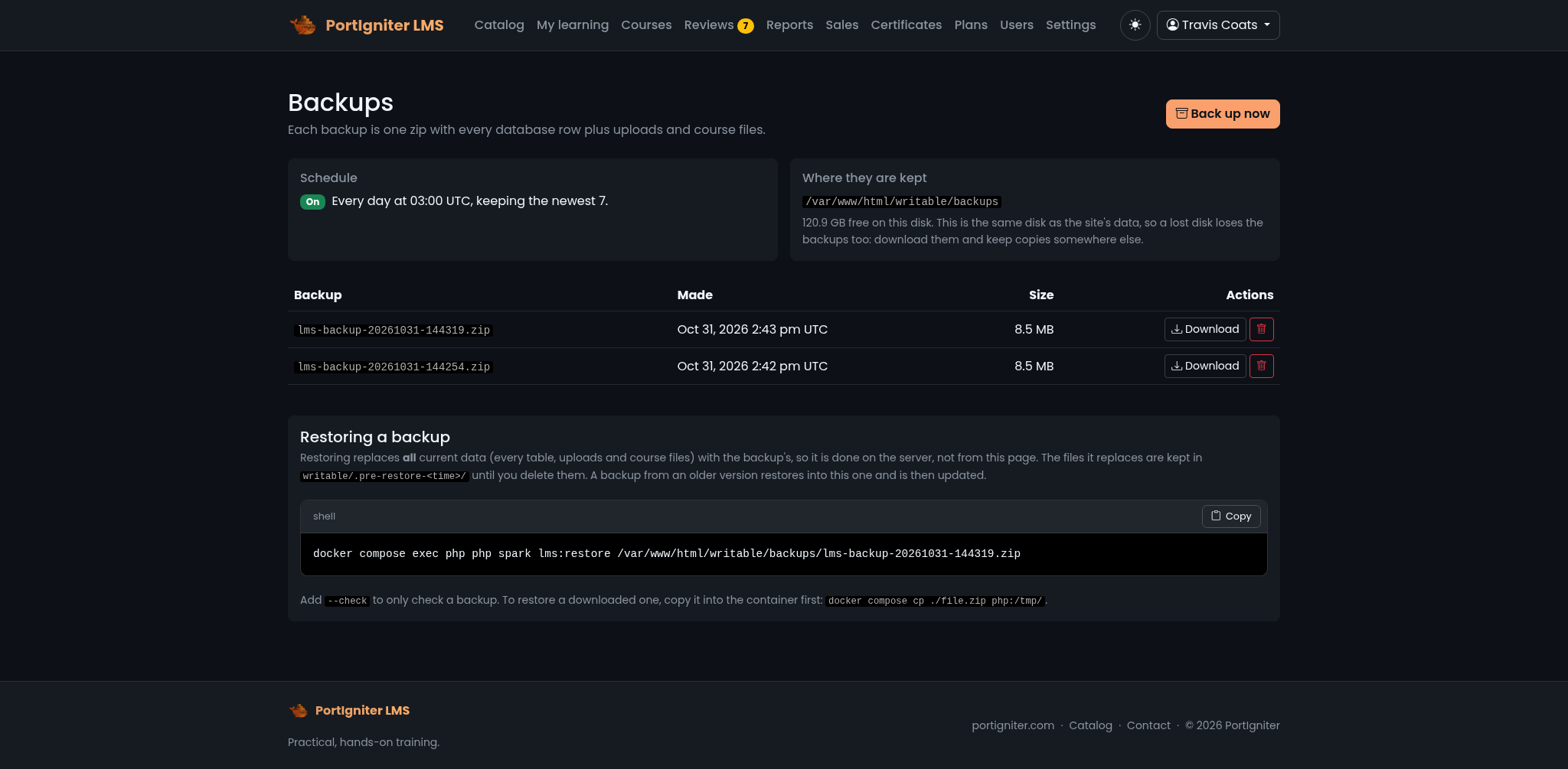
The page shows:
- Schedule: whether daily backups are on, and a warning if the newest daily backup is more than 36 hours old.
- Where they are kept: the backup folder, the free disk space, and a warning when backups sit on the same disk as your data.
- The list of backups, each with Download and Delete.
Click Back up now to make one immediately.
Restoring is deliberately not available from the web page, because a restore replaces the very accounts and sessions the page runs on. Use the command line.
Daily backups
Turn on daily backups in .env:
lms.backupDaily = true
lms.backupHour  = 3
lms.backupKeep  = 7
The scheduler makes one backup a day at lms.backupHour (UTC) and keeps the newest lms.backupKeep. Apply the change with docker compose up -d.
/var/www/html/writable/backups inside the container, on the same Docker volume as your data. A backup on the same disk won't survive the loss of that disk. Download backups from Admin > Backups or copy them off the host regularly.
To copy the backup folder off the host from the command line:
docker compose cp php:/var/www/html/writable/backups ./lms-backups
Back up from the command line
docker compose exec php php spark lms:backup
See lms:backup for options, such as writing to a different folder or backing up the database only.
Restore a backup
Backups are named after the time they were made, in UTC, such as lms-backup-20261101-030000.zip. Use lms:backup --list to see them.
-
Copy the backup into the container, if it isn’t already in the backup folder:
docker compose cp lms-backup-20261101-030000.zip php:/var/www/html/writable/backups/ -
Check what it contains:
docker compose exec php php spark lms:restore /var/www/html/writable/backups/lms-backup-20261101-030000.zip --check -
Restore it. You’ll be asked to type
RESTOREto confirm:docker compose exec php php spark lms:restore /var/www/html/writable/backups/lms-backup-20261101-030000.zip
The restore checks the whole archive before changing anything. It then rebuilds the database, loads the backup’s data, and applies any newer database updates, so a backup from an older release restores cleanly into a newer one. A backup from a newer release than the one you’re running is refused: upgrade first.
The folders that were replaced are kept in /var/www/html/writable/.pre-restore-<time>/ until you delete them. If a restore fails partway through loading the database, it’s safe to run it again.
Moving to a new server
- Install PortIgniter LMS on the new server, using the same release, or a newer one, as the old server.
- Make a backup on the old server and download it.
- Copy it to the new server and restore it as above.
- Bring your
.envfile across too, especiallyencryption.keyif you use two-step sign-in, and updateAPP_BASE_URLif the address changed.
Upgrades
Your license includes a year of updates. To upgrade:
-
Make a backup.
-
Set the new release in
.env:# The new release, from its release notes LMS_TAG=YYYY.MM.DD -
Pull the new images and restart:
docker compose pull
docker compose up -d
On start, the application applies any database updates and republishes its static files, so the site and the web server always match. Your courses, uploads, and database are untouched.
Release notes for each version are posted in the news section. Check them for any new settings before upgrading.
Downgrading
Database updates only go forward. To go back to an older release, restore a backup made on that release.