
Roles
PortIgniter LMS has three roles and no maze of permission checkboxes.
| Capability | Learner | Instructor | Administrator |
|---|---|---|---|
| Take courses | ✔ | ✔ | ✔ |
| Build, publish, import, and export courses and quizzes | ✔ | ✔ | |
| Manage enrollment and invitations | ✔ | ✔ | |
| Review hand-ins and essays | ✔ | ✔ | |
| View reports and analytics | ✔ | ✔ | |
| Delete courses | ✔ | ||
| Site settings, users, and backups | ✔ | ||
| Memberships, sales, promotions, and certificates | ✔ |
Roles are checked on the server for every request. A role change applies immediately, and a deactivated user is signed out on their next click.
Managing users
Open Admin > Users to search and filter everyone by role and status.
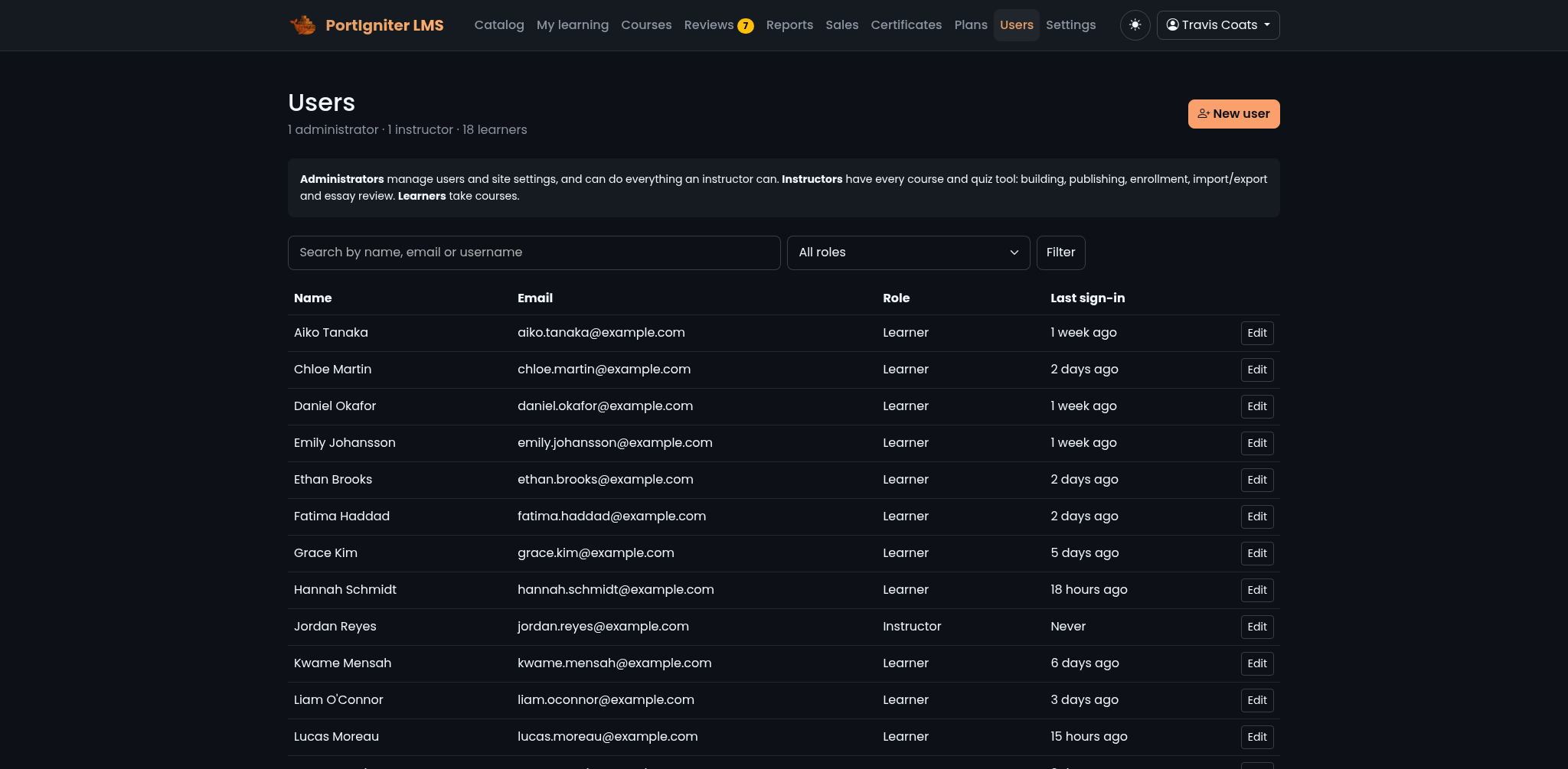
Create a user with an email address, full name, optional username, role, and password. Passwords for accounts you create need 12 or more characters, and the Generate button creates a strong one for you.
Edit a user to change their role, reset their password, or switch off Can sign in to deactivate them. The page also lists their purchases and memberships.
Users are never deleted. Deactivate them instead, so their history, certificates, and payment records stay intact. Two guard rails keep you from locking yourself out: you can’t lower your own role or deactivate yourself, and the last active administrator can’t be demoted or deactivated.
To add many learners to a course at once, use Add people on the course’s Enrollment page. See Enrollment & Access.
How accounts are created
PortIgniter LMS follows one rule: an account with a password only exists for an email address whose owner clicked an emailed link. That keeps anyone from claiming an address they don’t own.
| How someone arrives | What happens |
|---|---|
Registers at /register |
They receive a link, valid for 2 days. Clicking it creates their account and signs them in. |
| Buys a course or membership | An account is created with no password, and they receive an activation link, valid for 7 days. |
| Is added by staff to a course | Same as a buyer: an account with no password and an activation link. |
| Holds an invitation key | They can register from the invitation page, even when public registration is off. |
Registration is controlled by Let people create their own accounts in Admin > Settings > Accounts. It’s on by default. Turn it off to run an invitation-only site.
Forgotten passwords
Learners reset their own password from Forgot your password? on the sign-in page. The reset link is single use and expires after 1 hour. Registration and password reset never reveal whether an address already has an account.
Sign-in, registration, password reset, and invitation keys are all rate-limited.
Profiles
Every user can open My profile from the account menu to change:
- Their name, username, time zone, and avatar.
- Their password, which requires the current one.
- Their email address. The change takes effect only after they click a link sent to the new address.
- Their notification preferences: whether to get emails for reviews and for certificates. In-app notifications are always on.
All dates and times are shown in each person’s own time zone.
Two-step sign-in
Any user can turn on two-step sign-in from My profile > Two-step sign-in. It works with any authenticator app, such as Google Authenticator, Microsoft Authenticator, 1Password, or Aegis.
- Click to turn it on and confirm your password.
- Scan the QR code with your authenticator app, or type in the key shown.
- Enter a code from the app to confirm.
- Save your 10 recovery codes somewhere safe. They are shown only once, and each one works one time if you lose your phone.
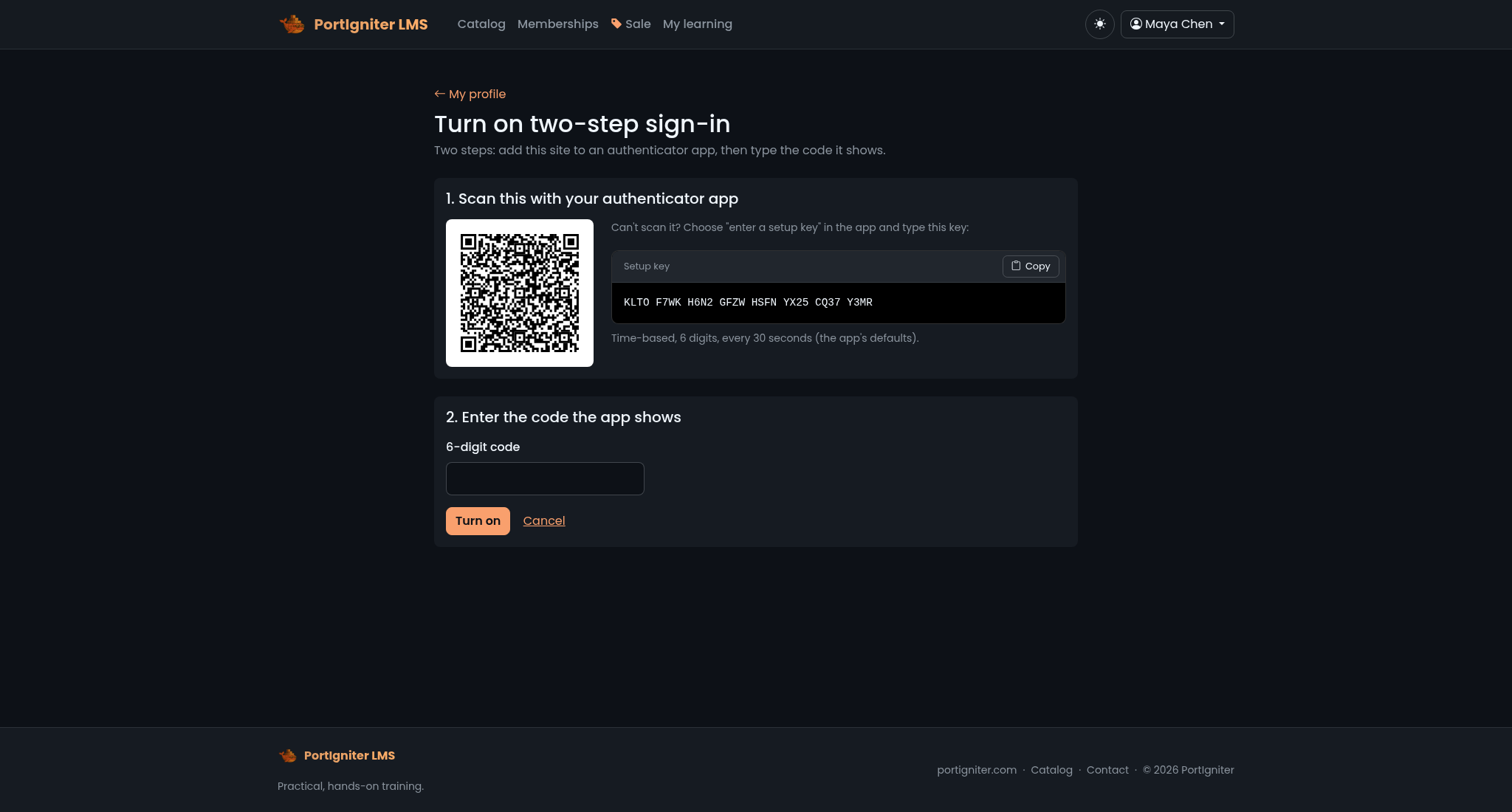
After that, signing in asks for a code from the app, or a recovery code. A password reset link still asks for the code, so access to someone’s mailbox alone isn’t enough to get into their account. Users can make new recovery codes or turn two-step sign-in off from their profile, and they get an email whenever it’s turned on or off.
If someone is locked out, an administrator can open their user under Admin > Users and click Turn off two-step sign-in.
encryption.key in .env before people start using two-step sign-in. It encrypts their secrets in the database. Generate it once and keep it safe: if it's lost or changed, everyone using two-step sign-in will need an administrator to turn it off for them. Generate one with docker compose exec php php -r 'echo "hex2bin:".bin2hex(random_bytes(32)),"n";'