
Quizzes in PortIgniter LMS separate questions from rules. Questions live in question banks, and each quiz decides which questions to ask and how. That makes it easy to reuse questions across quizzes, give every learner a different random set, and build a final exam from a large pool.
Add a quiz from the course outline with New quiz, then open it to launch the quiz builder. It has three tabs: Questions, Selection, and Settings.
Questions and banks
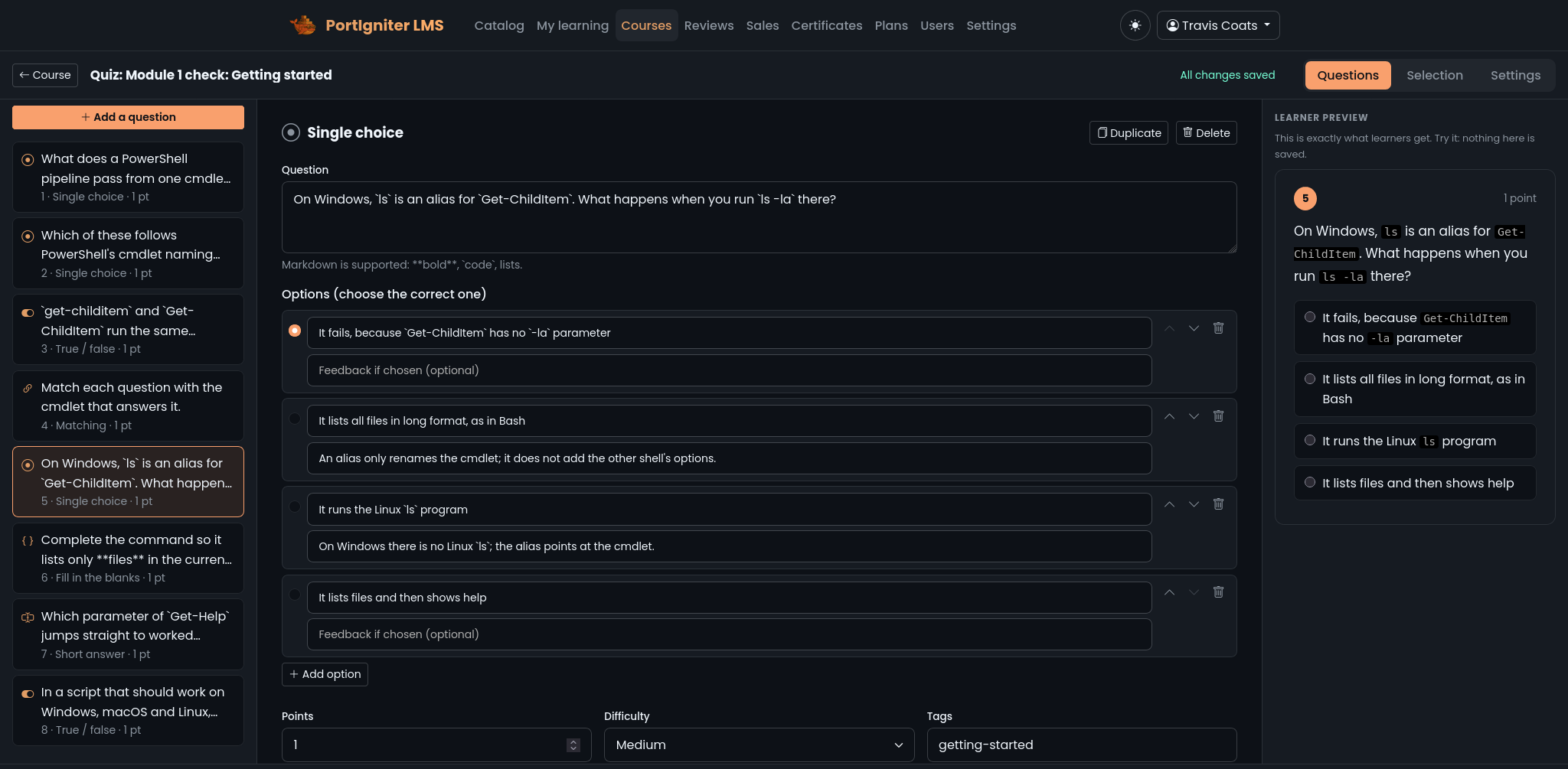
The Questions tab is where you write questions. Each question belongs to a bank, and a course can have as many banks as you like. One bank per topic works well. Create a separate bank when a quiz should never share questions with another.
Every question has the question text, points, and an optional Explanation shown after answering, plus an optional hint, image, difficulty, and tags. Difficulty and tags let random draws pick the right kind of question. The editor shows a live preview of the question exactly as learners will see it.
Question types
| Type | How learners answer | Scoring options |
|---|---|---|
| Single choice | Pick one option. | Right or wrong. |
| Multi-select | Pick every correct option. | All or nothing, or partial credit. |
| True / false | Pick true or false. | Right or wrong. |
| Short answer | Type a word, phrase, or command. Accepts a list of answers, matched exactly, ignoring case, ignoring extra spaces, or by regular expression. | Right or wrong. |
| Numeric | Type a number, with an optional tolerance and unit. | Right or wrong. |
| Fill in the blanks | Complete a sentence, with each blank either a dropdown or typed. | All or nothing, or per blank. |
| Ordering | Drag items into the right order. | All or nothing, or partial credit. |
| Matching | Match each item on the left to one on the right, which can include extra distractors. | All or nothing, or per pair. |
| Categorize | Drag items into the right categories. | All or nothing, or per item. |
| Essay | Write a free-form answer, with optional minimum and maximum word counts. | Graded by hand. |
Short answer is ideal for “type the command” questions in technical courses. List every reasonable variant, and match ignoring case for commands and words.
Every drag-and-drop question also works from the keyboard.
Selection: which questions a quiz asks
The Selection tab builds the quiz from one or more pulls, in order:
- A fixed pull asks specific questions from a bank. Everyone gets the same questions.
- A random pull draws a number of questions from a bank on every attempt. You can narrow it by tags, difficulty, question type, or learning objective.
You can mix both in one quiz, such as five fixed core questions followed by ten random ones, and give each pull a Section heading. A question is never asked twice in the same attempt. The builder shows how many questions a pull can draw, and won’t let you publish a random pull that asks for more questions than its bank can supply.
Settings
Basics and scoring
| Setting | What it does |
|---|---|
| Type of quiz | Quiz (practice) or Test (summative). This is only a label. Every behavior is set by the options below. |
| Instructions | Markdown shown before learners start. |
| There is a pass mark | The percentage needed to pass. Without a pass mark, submitting the quiz completes it. |
| Which attempt counts | The best attempt, the latest attempt, or the average of all attempts. This score is used for completion and for unlock rules. |
| When there is an essay | Wait for an instructor, so the result stays pending until every essay is graded, or decide pass and fail from the auto-graded questions only. |
Attempts and time limit
| Setting | What it does |
|---|---|
| Limit the number of attempts | How many times a learner can take the quiz. Unlimited by default. |
| Wait between attempts | A cooldown in minutes before the next attempt. |
| Timed | A time limit in minutes. |
| Grace period | Extra seconds accepted after the deadline to absorb network lag. 10 by default. |
| Save and re-sync the clock every | How often answers are saved and the countdown is corrected. 15 seconds by default. |
Delivery and feedback
| Setting | What it does |
|---|---|
| Shuffle the order of questions | Each attempt gets a different question order. |
| Shuffle answer options | Each attempt gets a different option order. |
| Show one question at a time | One question per page, optionally with Allow going back to earlier questions. |
| When learners see answers | Immediately after checking each question, after they submit, after they pass or use their last attempt, or never. |
| Show the correct answers / Show explanations | What learners see in their results. |
Practice quizzes work well with immediate feedback, unlimited attempts, and no timer. Final tests work well with random draws from a large pool, a timer, two or three attempts, and feedback after submitting or after the final attempt.
Timed quizzes
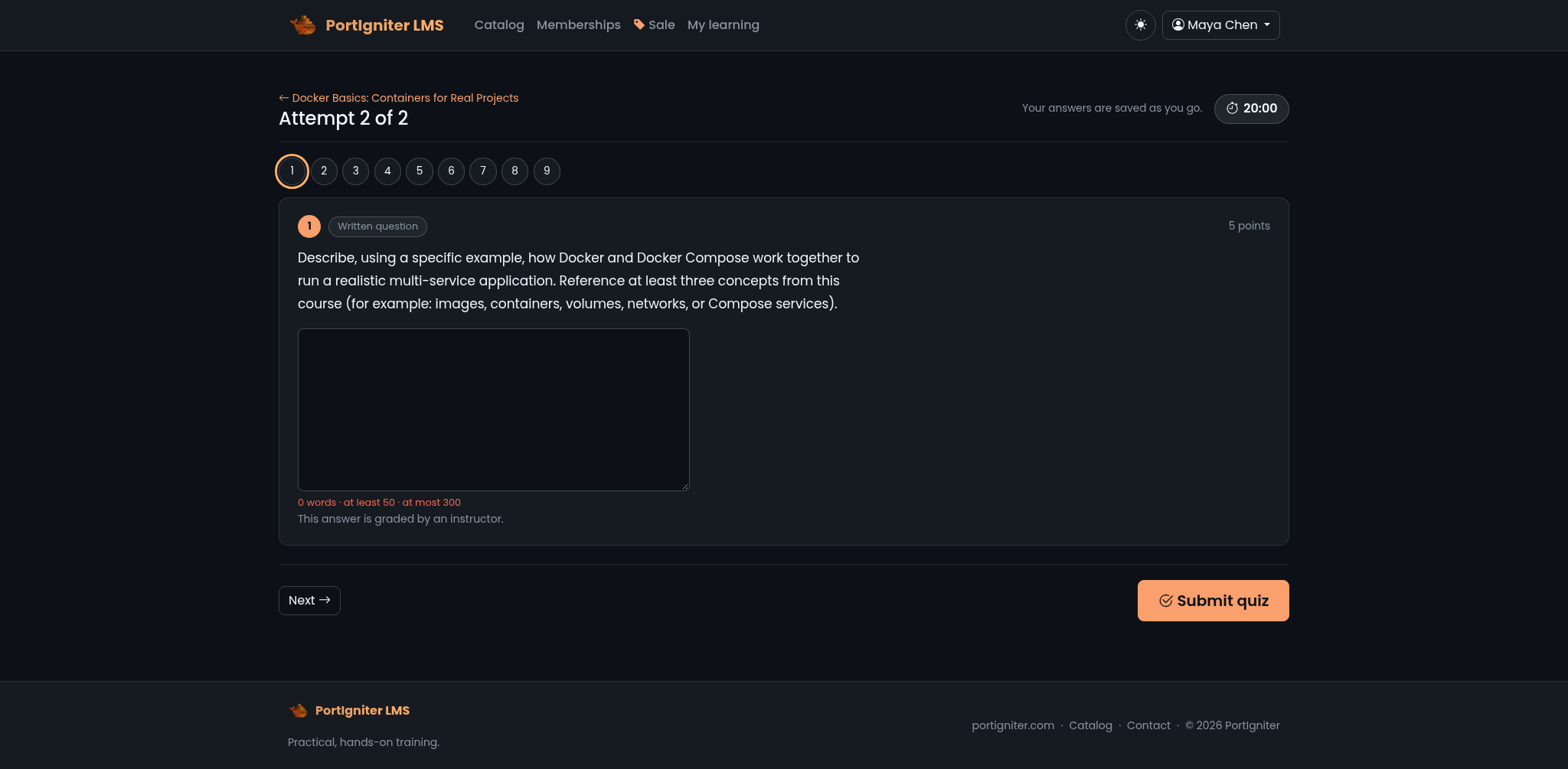
The server keeps the clock. When a learner starts a timed quiz, the server records a hard deadline, and the countdown in the browser is only a display that re-syncs with the server as the learner works. Refreshing the page, losing the connection, or switching devices never resets the time.
Answers are saved as the learner goes. If time runs out, or the learner simply closes the tab and never comes back, the saved answers are submitted automatically. Nothing typed after the grace period is counted.
Fair and tamper-proof
- Grading happens on the server. The correct answers are never sent to the browser before submission.
- Each attempt is a snapshot. The exact questions, option order, and settings of an attempt are frozen when it starts. Editing a bank later never changes an attempt in progress or rewrites past results.
- Completion is never taken away. Once a learner passes, a later, worse attempt doesn’t undo it.
Gating with quizzes
To require a score before learners move on, add a Minimum percent unlock rule to the next module or item. See Unlock rules. Keep the rule’s percentage in line with the quiz’s pass mark so learners aren’t confused.
Grading essays
Essay answers go to the Reviews queue, alongside assignments. Open an attempt to read the essay, score it, and leave feedback. The learner sees the result and receives a notification, and an email if they’ve chosen to get one. See Assignments & Reviews.
Quiz statistics
Once a quiz is published, a Stats button in the quiz builder opens its analytics: pass rate, score distribution, the hardest and easiest questions, and what learners answered for each option. See Reports & Analytics.