
The Library sells documents alongside your courses: lab workbooks, field guides, cheat sheets, sample chapters, templates. Documents use the same tools as courses: prices, sales, bundles, memberships, and Stripe Checkout, with nothing extra to set up in Stripe.
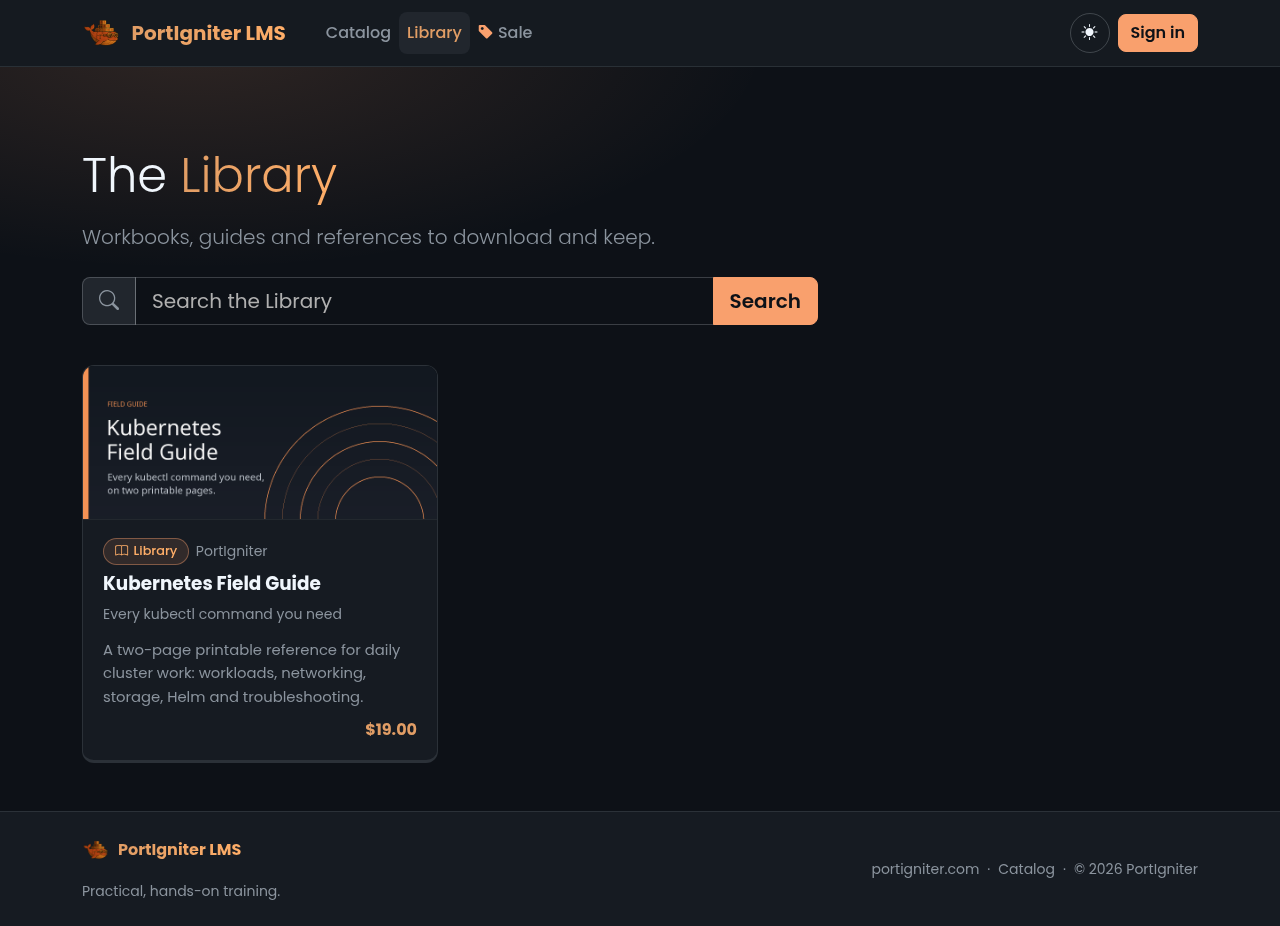
Only administrators create and edit documents. Once at least one document is published and listed, a Library link appears in the header.
Adding a document
Open Admin > Library documents (in the account menu, under Administration) and click New document. Fill in the details, save, then add files on the same page.
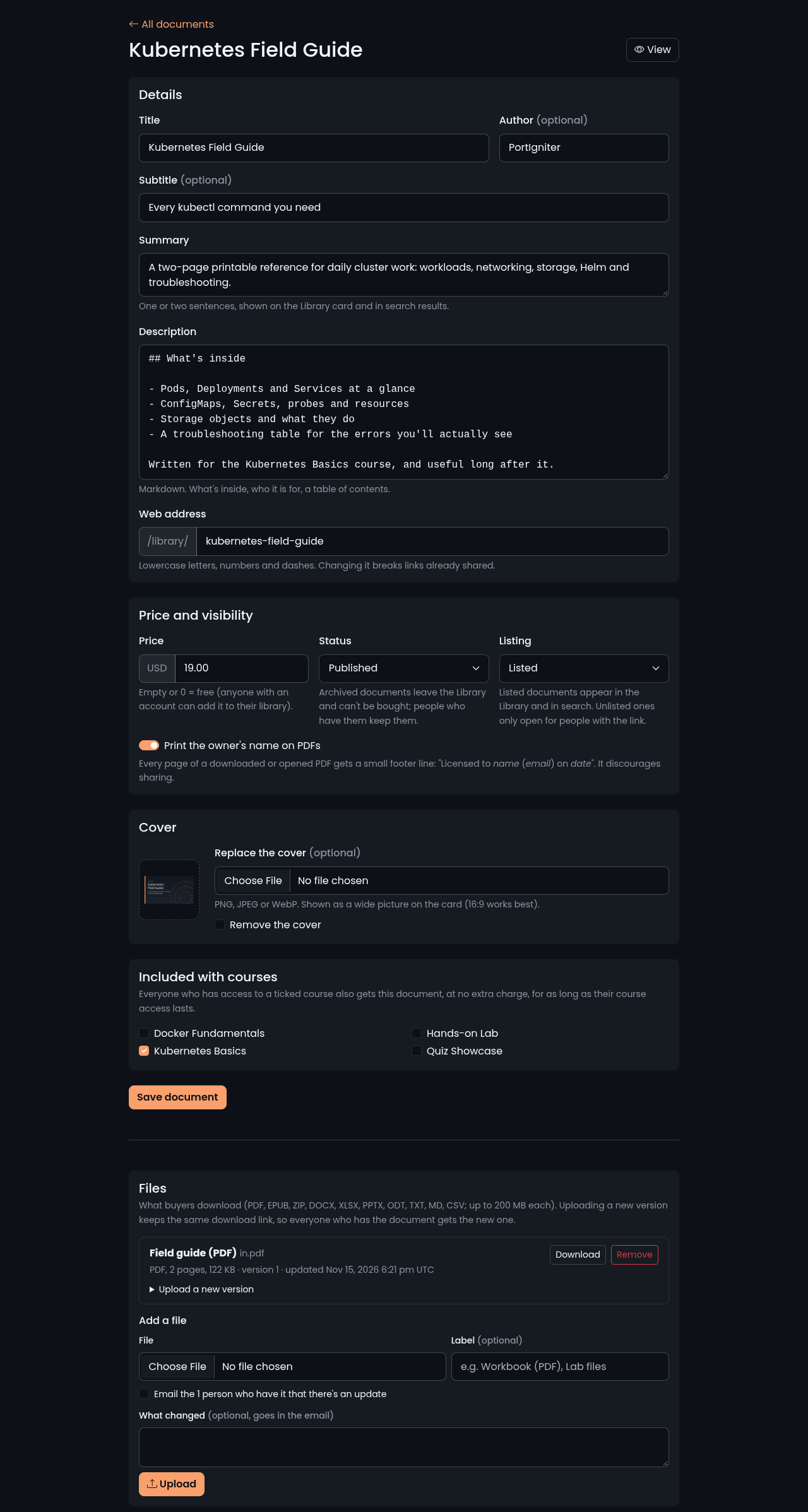
| Setting | What it does |
|---|---|
| Title / Subtitle / Author | Shown on the Library card and the document page. Subtitle and author are optional. |
| Summary | One or two sentences, shown on the Library card and in search results. |
| Description | Markdown, shown on the document page. Describe what’s inside and who it’s for, or add a table of contents. |
| Web address | The page address, /library/<name>. Changing it breaks links already shared. |
| Price | Empty or 0 makes the document free. Paid documents use the site currency (stripe.currency). |
| Status | Draft (only staff can see it), Published, or Archived. Archived documents leave the Library and can’t be bought, but people who already have them keep them. |
| Listing | Listed documents appear in the Library and in search. Unlisted ones only open for people with the link. |
| Print the owner’s name on PDFs | Stamps each PDF page with the owner’s name, email, and date. See Name stamping. |
| Cover picture | PNG, JPEG, or WebP, shown on the Library card. A 16:9 picture works best. |
| Included with courses | Everyone with access to a ticked course also gets this document. See Documents included with a course. |
Files
A document can hold up to ten files, such as the PDF plus a ZIP of lab files. Accepted types are PDF, EPUB, ZIP, DOCX, XLSX, PPTX, ODT, TXT, MD, and CSV, up to 200 MB each. Give each file an optional Label (for example “Workbook (PDF)”) so buyers know what they’re downloading. Files are checked by their contents, not just their name.
Files are stored in the writable volume (uploads/library/), so they’re included in backups.
lms.libraryMaxMb in .env (default 200) and run docker compose up -d.
What buyers see
Each document has its own page with its description, price, and a Buy button. Visitors don’t need an account first: as with courses, a new buyer is emailed a link to set their password. Free documents have an Add to my library button, which only asks the visitor to sign in or create an account.
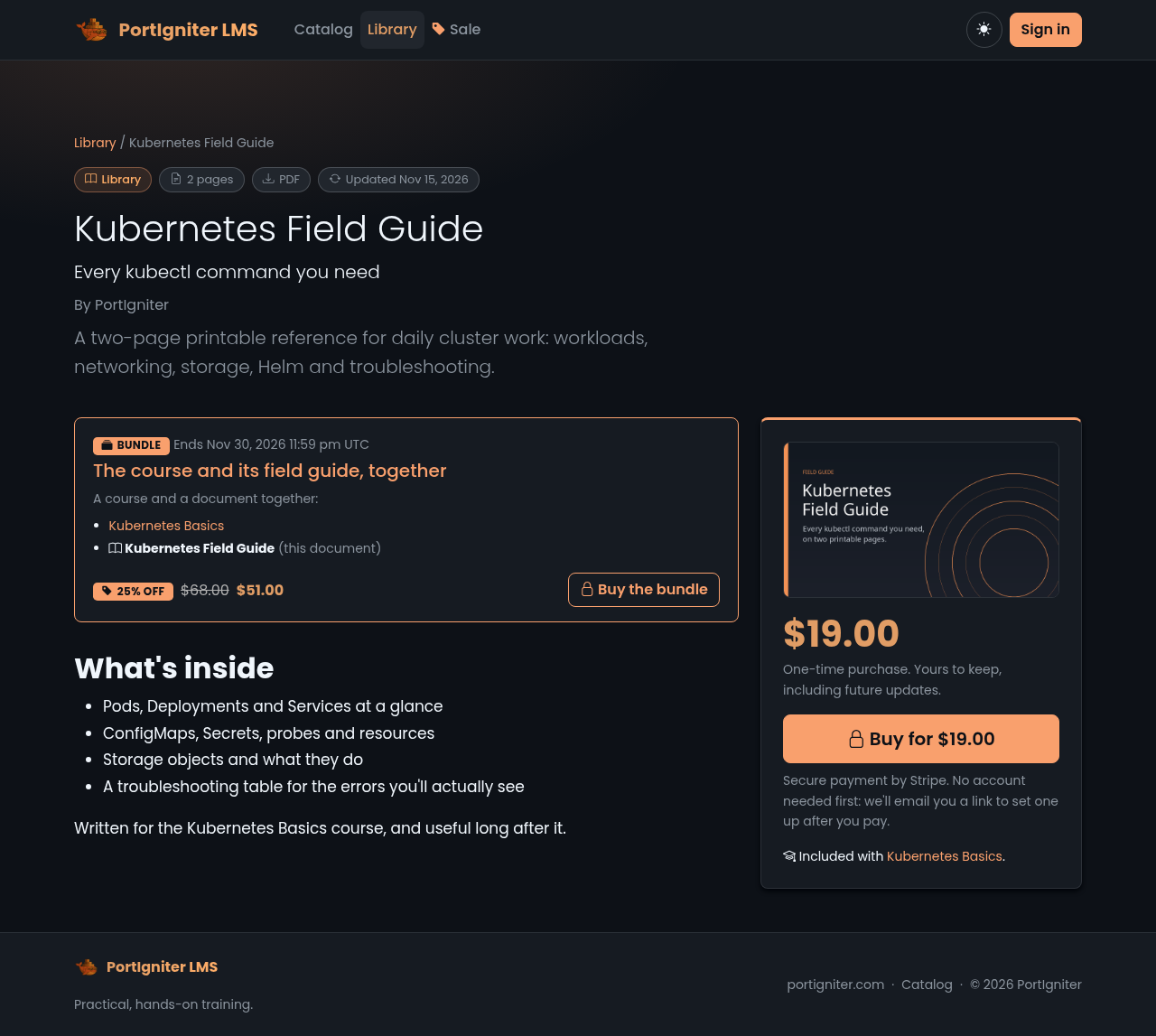
Once someone has a document, the page lists its files with:
- Download, for every file.
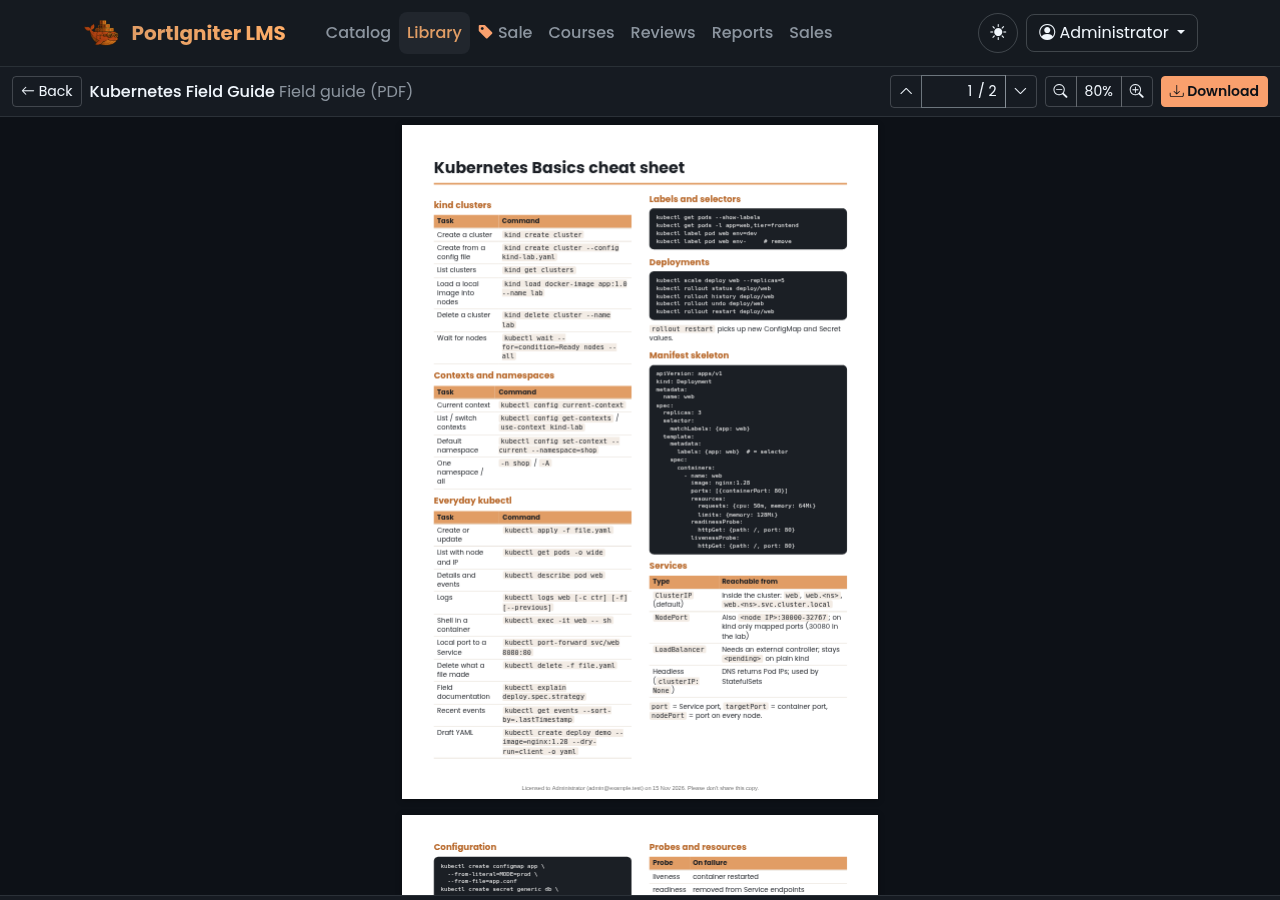
- Read online, for PDFs. The PDF opens in a reader built into the site, with page navigation and zoom. It runs entirely on your server, with no third-party viewer.
Everything a person owns is listed under My library in their account menu.
Files are only ever served after an access check. Someone without access gets a “not found” page, even with a direct link.
Searching
The catalog search also looks through the Library, so a search on the front page shows matching documents under From the Library. The Library page has its own search too.
Name stamping
With Print the owner’s name on PDFs switched on, every page of a PDF gets a small grey line at the bottom when it’s downloaded or opened in the reader:
Licensed to Jane Doe (jane@example.com) on 15 Nov 2026. Please don't share this copy.
The stamp is added to a fresh copy each time. The original file on your server never changes, and the document’s bookmarks, links, and forms are kept. Other file types are delivered as they are.
Stamping uses qpdf, which is included in the PortIgniter LMS Docker image. If you run the application outside the image without qpdf installed, PDFs are delivered without the stamp, and the document form shows a warning. To use a qpdf that isn’t on the PATH, set lms.qpdfPath in .env.
Who can open a document
A person can open a document if any of these is true:
- They bought it, on its own or in a bundle.
- They added it for free, or an administrator gave it to them.
- It’s included with a course they have access to.
- Their membership covers it.
- They’re an instructor or administrator.
Documents included with a course
Tick courses under Included with courses to give the document to everyone who can open those courses. Access lasts exactly as long as their course access does, so if a course’s access expires or is paused, so does the document. The course page shows the document in an Included with this course box.
This is the easy way to ship a workbook with a course without charging for it twice.
Memberships
A membership plan can cover Library documents as well as courses. Under Library documents on the plan form, choose None, Every published document (including ones published later), or Chosen documents. Members can open those documents while their membership lasts.
Giving a copy
Under Give to someone on the document form, enter a person’s email address and click Give. The document is added to their library at no charge, which is handy for review copies or support cases. The person needs an account.
Refunds and disputes
A full refund or a dispute pauses access to the document, exactly as it does for courses. Refunding a bundle pauses everything in it.
Updating a document
To ship a new edition, open the file under Files and use Upload a new version. The download link stays the same, and everyone who owns the document gets the new version from then on. Owners always get updates at no charge.
To let owners know, tick Email the people who have it that there’s an update before uploading, and add an optional note under What changed. Draft documents never send email. People can turn these emails off in My profile by unticking When a document in my library is updated.
Archiving and deleting
Set Status to Archived to stop selling a document. It leaves the Library and can’t be bought, but everyone who has it keeps it.
Delete document is only available while nobody has the document, for example a draft you no longer need. Once someone owns it, archive it instead.
Sales and reports
Document purchases appear in Admin > Sales alongside course purchases, and the type filter has a Library documents only choice. They’re included in the revenue totals and the CSV export.